This guide will take you through some steps/checks to perform if you are having problems connecting to the internet.
1. Broadband & WiFi Troubleshooting Guide
Before reaching out for support, please work through this 5-minute checklist. This helps us determine if the issue is with your internal WiFi hardware or a wider service outage from your provider (ISP).
2. Is it just one device?
First, check if other devices (phones, laptops, smart TVs) are working.
- One device down: The issue is likely with that specific gadget. Try toggling WiFi off and on, or restarting the device.
- Everything down: This indicates a broader issue with the incoming broadband line or the core networking hardware.
3. Checking the ONT Box
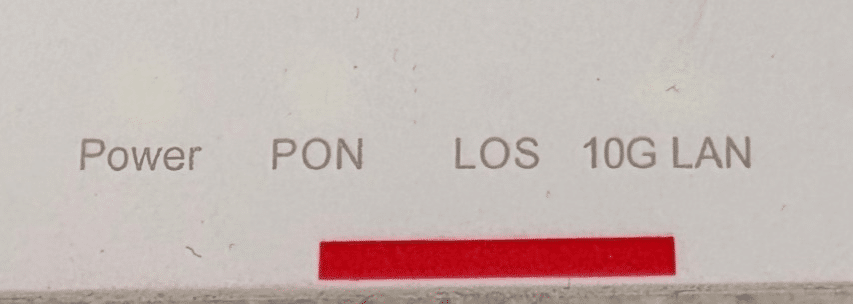
If you have fibre, you should check your ONT box. This is usually a small white box where the fibre connection comes into your property.
- Power: Should be solid Green.
- PON (Passive Optical Network): It should be Solid Green. This means your house is successfully “talking” to the exchange.
- LOS (Loss of Signal): This light should be OFF. If you see a Flashing Red LOS light, the fiber cable is physically broken or disconnected outside.
- LAN: This should be flashing. It shows that the box is successfully sending data to your router.
⚠️ Note: If the LOS light is Red, we cannot fix this remotely. You must contact your ISP (Ivertec, Eir, Sky, etc.)
Check if there is a known service outage in your area. You will often need your Account Number (found on your bill) to run a live line test.
4. Check your ISP's router
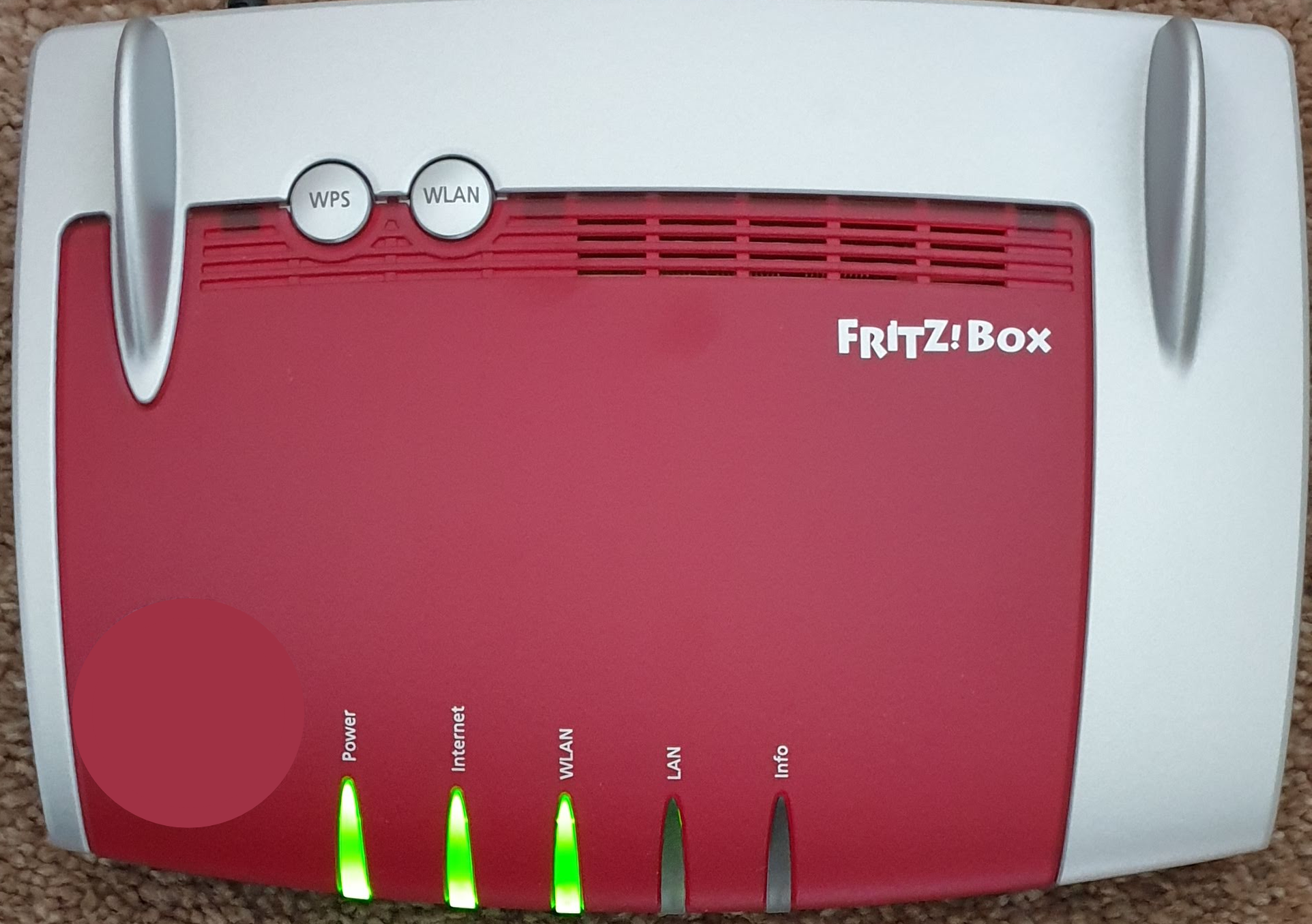
Broadband routers will usually have the same or similar light indicators. Here’s what to check:
Power:
- Solid Green: Connection is healthy and synced.
- Flashing Green: Searching for a signal. Check that the cable is firmly plugged into the wall.
Internet
- Solid Green: Online and authenticated.
- Off or Red: The line is connected, but your ISP account details (username/password) are missing or incorrect.
WLAN (WiFi)
- Solid Green: WiFi is active.
5. Check Physical Connections
Fibre Broadband Customers:
Port Check: On the SIRO/ONT box, check that the cable from your LAN port to the WAN port on your router is fully plugged in.
6. Still not back online?
If you have completed these steps and your ISP confirms the line is healthy, please feel free to contact us!
To speed up your request, please include:
Which ISP you are using (e.g., Ivertec, Sky, Eir).
What colour are the lights on the ISP box (specifically the LOS/PON lights)?
Contact Ciz ICT Support:
t – 066 716 5020