This guide will take you through the basic steps to control your PTZ camera in the DMSS app.
1. Accessing PTZ Controls
To start, the user must first open the live feed of the specific PTZ camera.
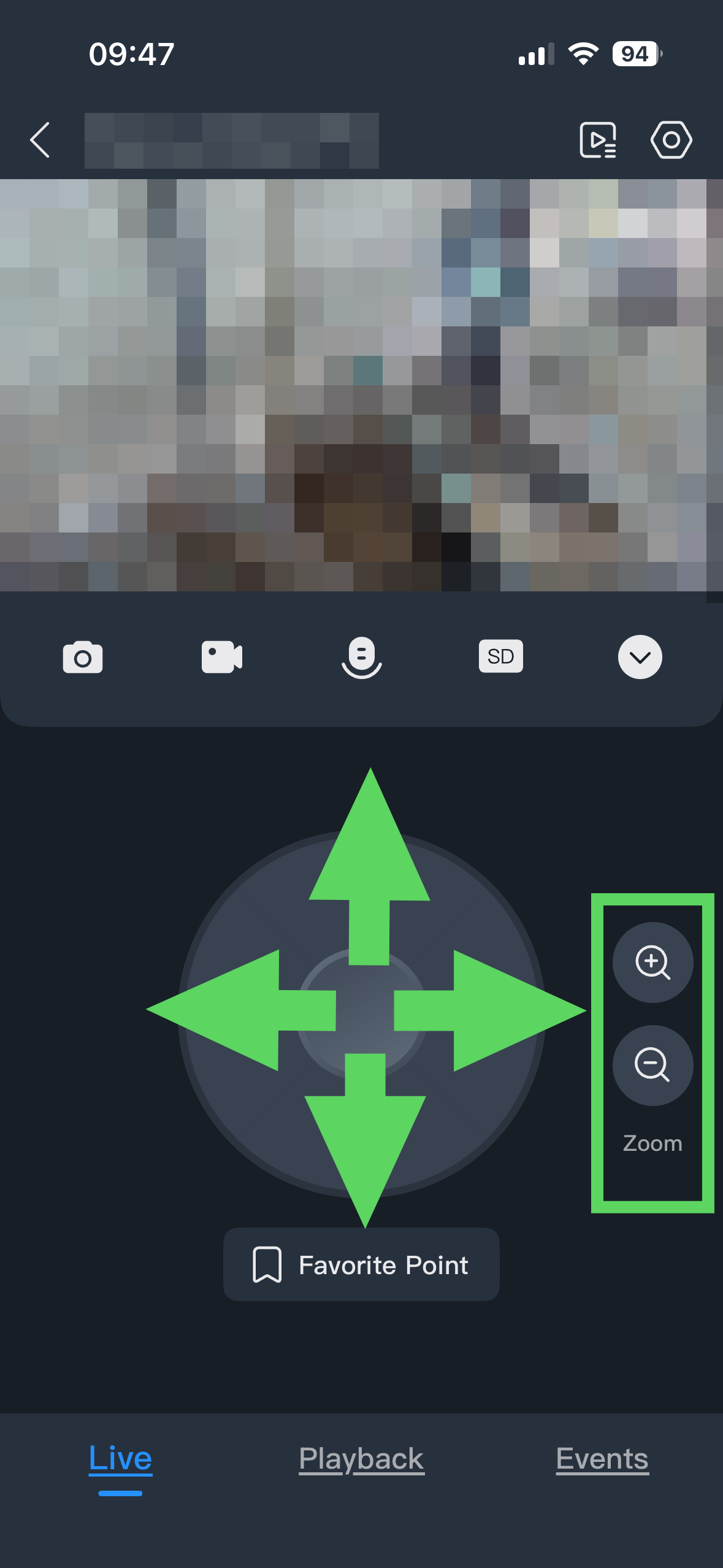
Step: In the Live View screen, look for the PTZ icon (it usually looks like a 4-way directional pad or a small joystick icon) located in the toolbar below the video window.
Tip: If you don’t see it immediately, swipe the toolbar left or right to reveal more options.
2. Basic Directional Control
Once the PTZ menu is open, the most basic way to move the camera is via the On-Screen Joystick.
Pan & Tilt: Tap and hold the directional arrows or the center joystick to move the camera up, down, left, or right.
Gesture Control: Most modern versions of DMSS allow you to simply swipe on the video feed itself to move the camera.
Zoom: You can use the +/- buttons to Zoom into the feed.
Tip:- the speed at which the camera reacts will depend on your internet connection. So, be patient
3. The "Favorite Points" (Presets)
You can create 'presets', or default positions that the camera will move to.
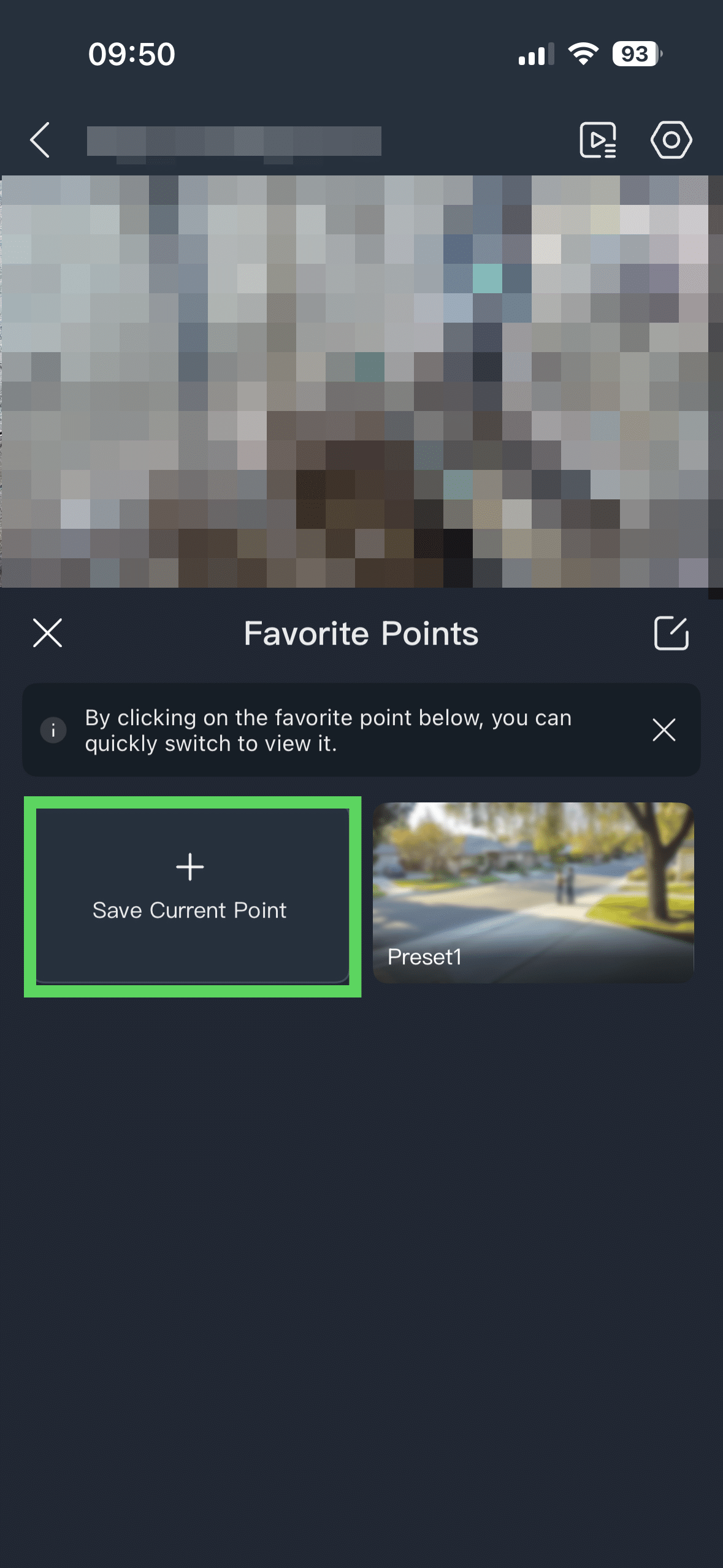
Creating a Preset: Move the camera to a view you want to save. Tap the Favourite Point button.
Tap Save Current Point, give it a name like "Main Gate," and save.
Recalling a Preset: Click on the Favourite Point button. Select the 'Preset' you created.
4. Tips
Connection Speed: PTZ commands travel over the internet. If the camera feels "laggy," suggest switching the stream quality from HD to SD for a more responsive control experience.