This guide will help you quickly set up, manage, and troubleshoot push notifications in the DMSS app so you only get alerted when your cameras detect motion events.
1. Check your Phone’s Notification Settings
Check Your Phone Permissions:
iPhone: Go toSettings>Notifications>DMSS(orSettings>DMSS) and ensure Allow Notifications is turned ON. Also, ensure Background App Refresh is toggled ON under Settings > DMSS so alerts arrive even when the app is closed.
Android: Go toSettings>Apps>DMSS>Notificationsand set them to Allowed. Also, set Battery Optimisation for DMSS to Unrestricted (or Don’t Optimise) so notifications aren’t delayed when your phone goes to sleep.
2. DMSS App – How Notifications Work
To make managing your cameras easy, DMSS uses two levels of notification controls:
NVR (Recorder): Controls all notifications for your security system. If this main switch is turned OFF, your phone will not receive alerts from any camera.
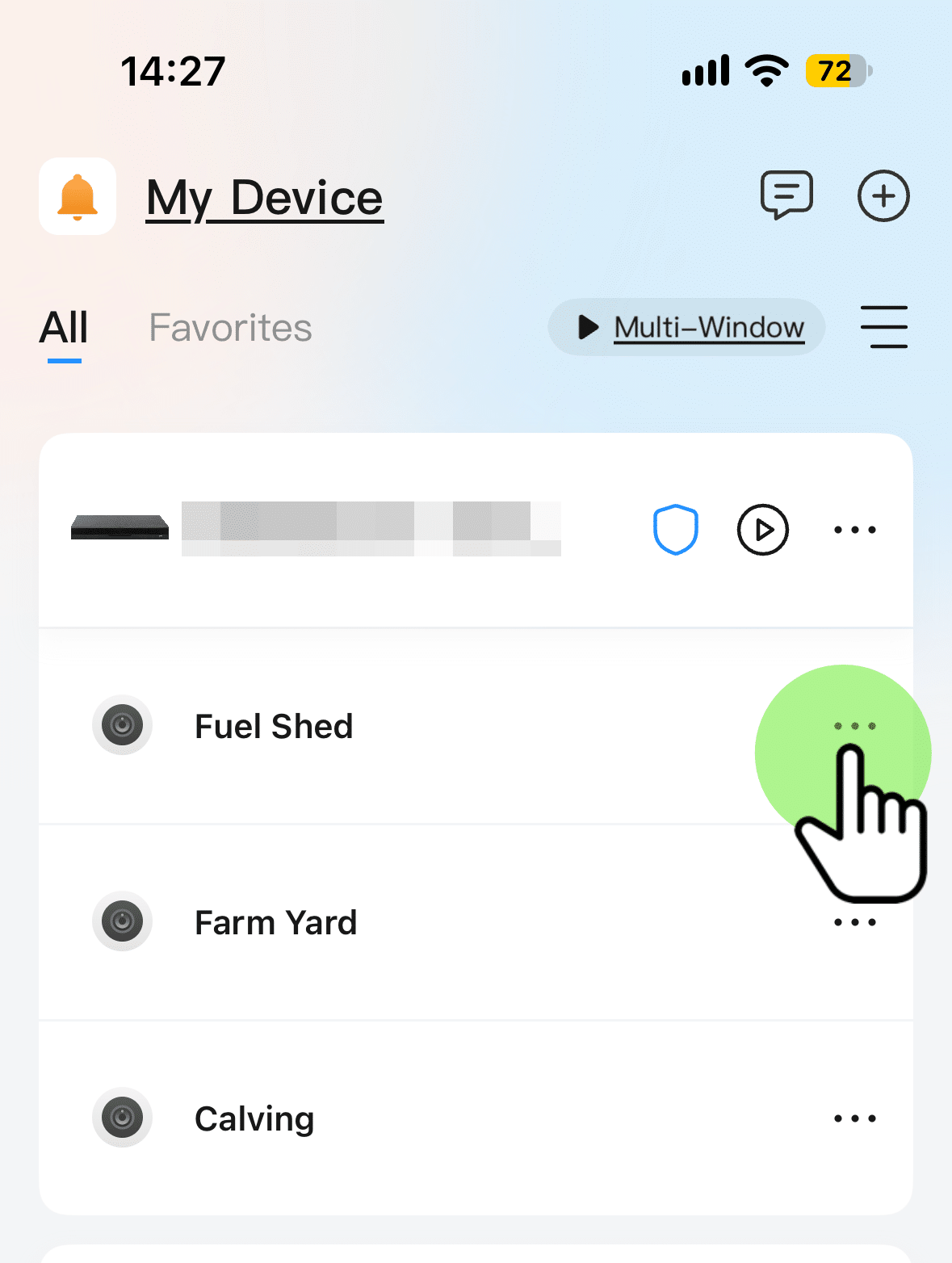
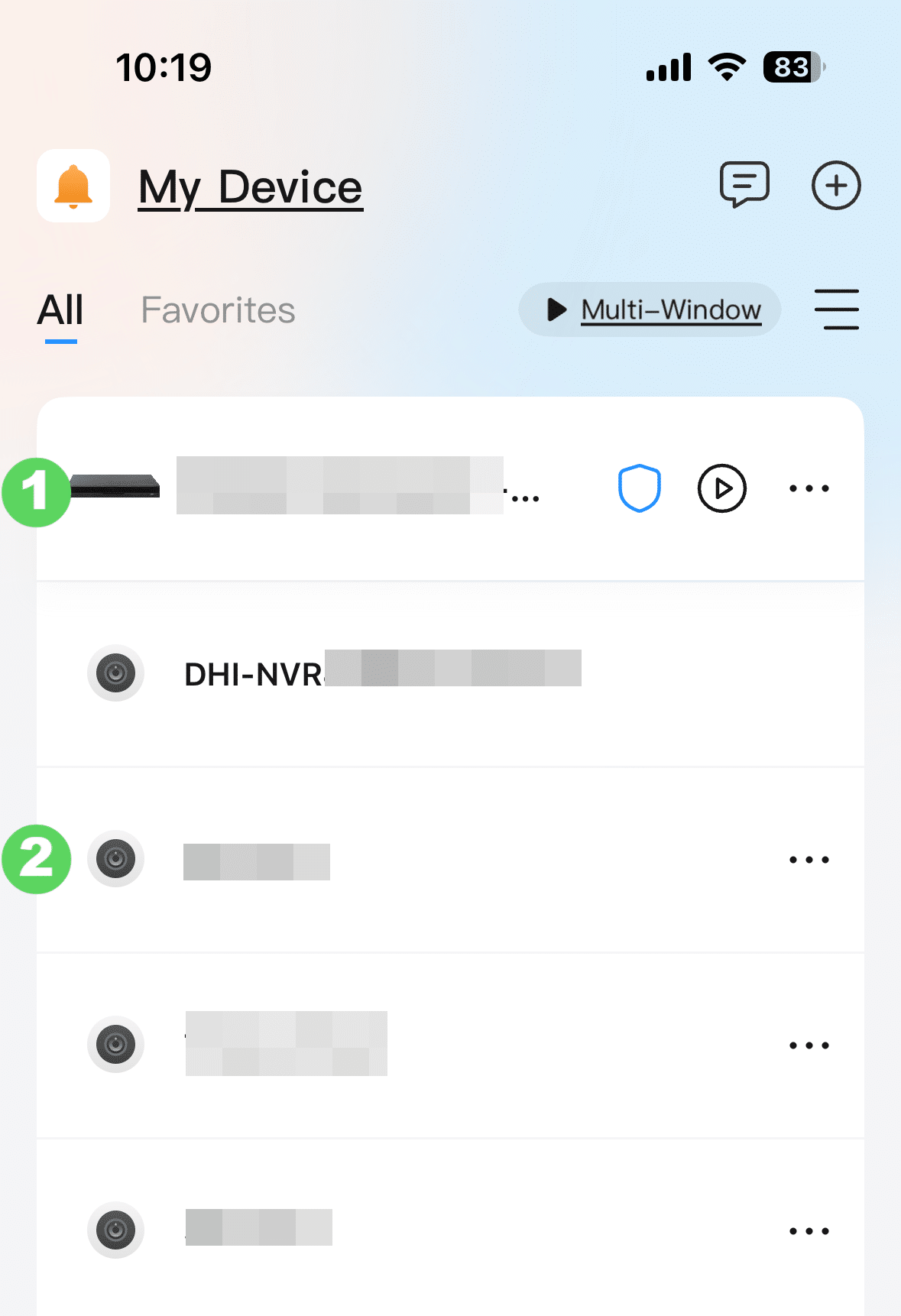
Individual Cameras: Toggling the three dots next to a specific camera on your main screen allows you to temporarily mute alerts for just that camera.
3. Configure Notifications on NVR
Open the DMSS app.
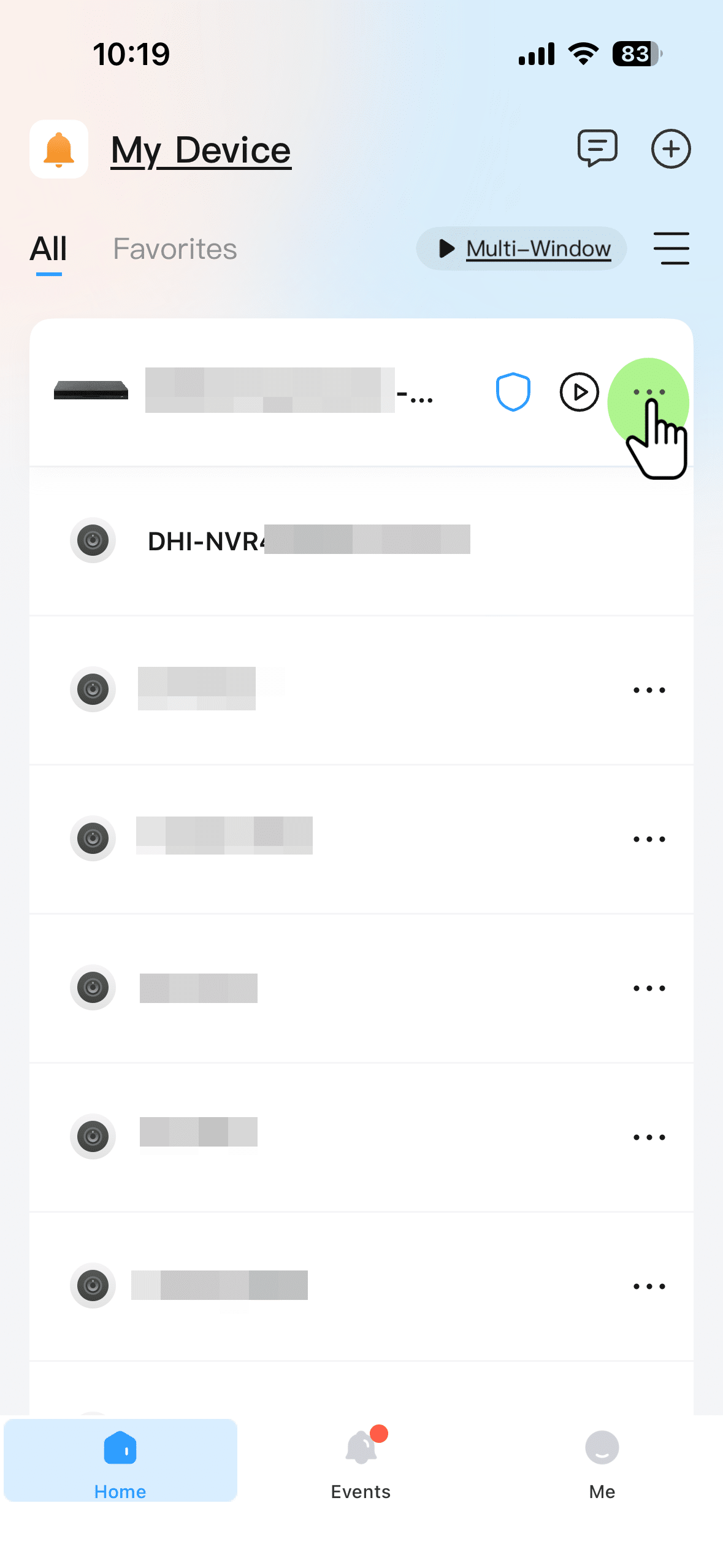
Tap the three dots (…) next to your NVR (the recorder listed at the top of your home screen).
3.1. Toggle NVR Notification Settings
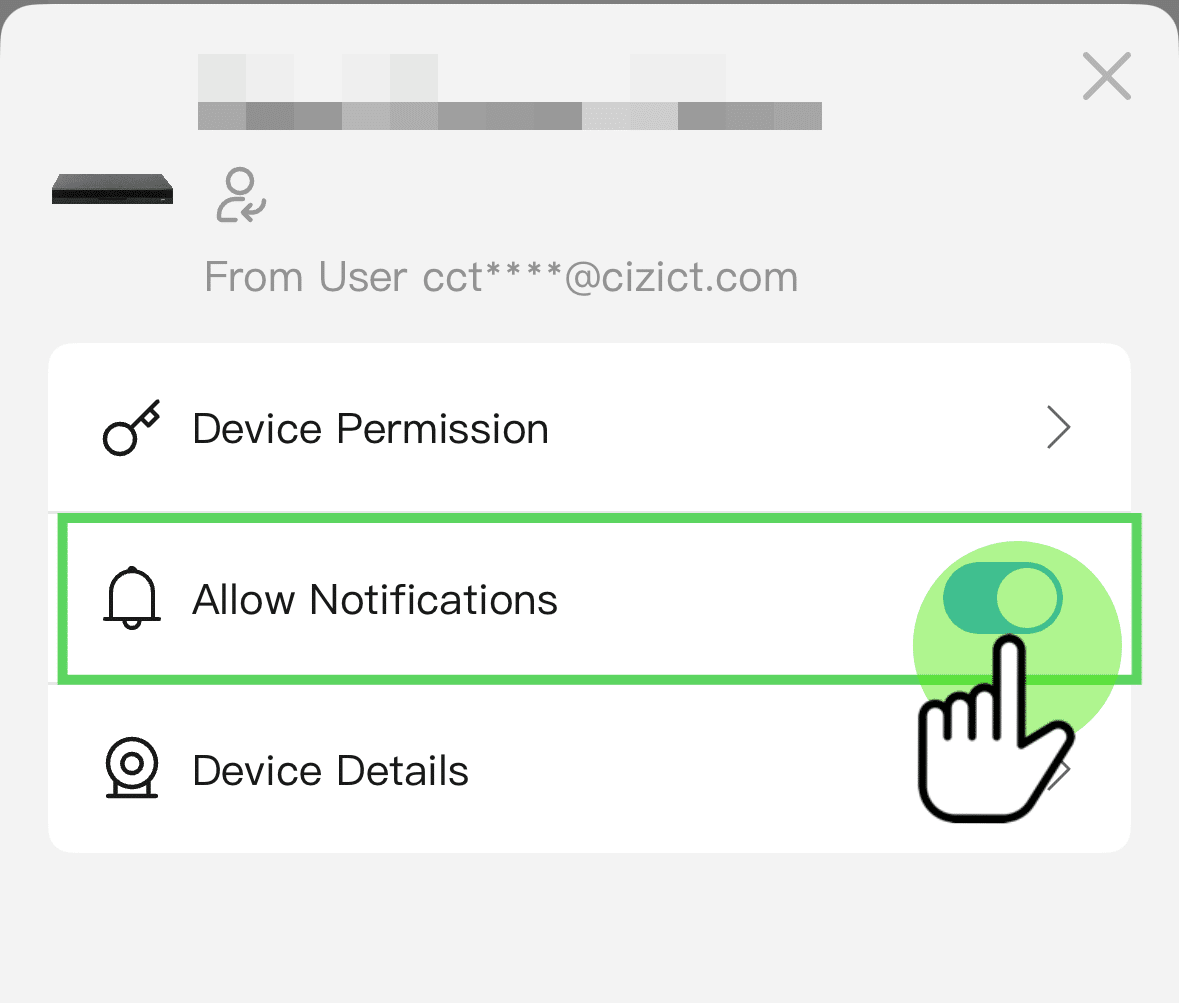
Toggle the main Allow Notifications switch at the top to ON.
3.2. Configure Notifications – Device Details
Select Smart Alerts:
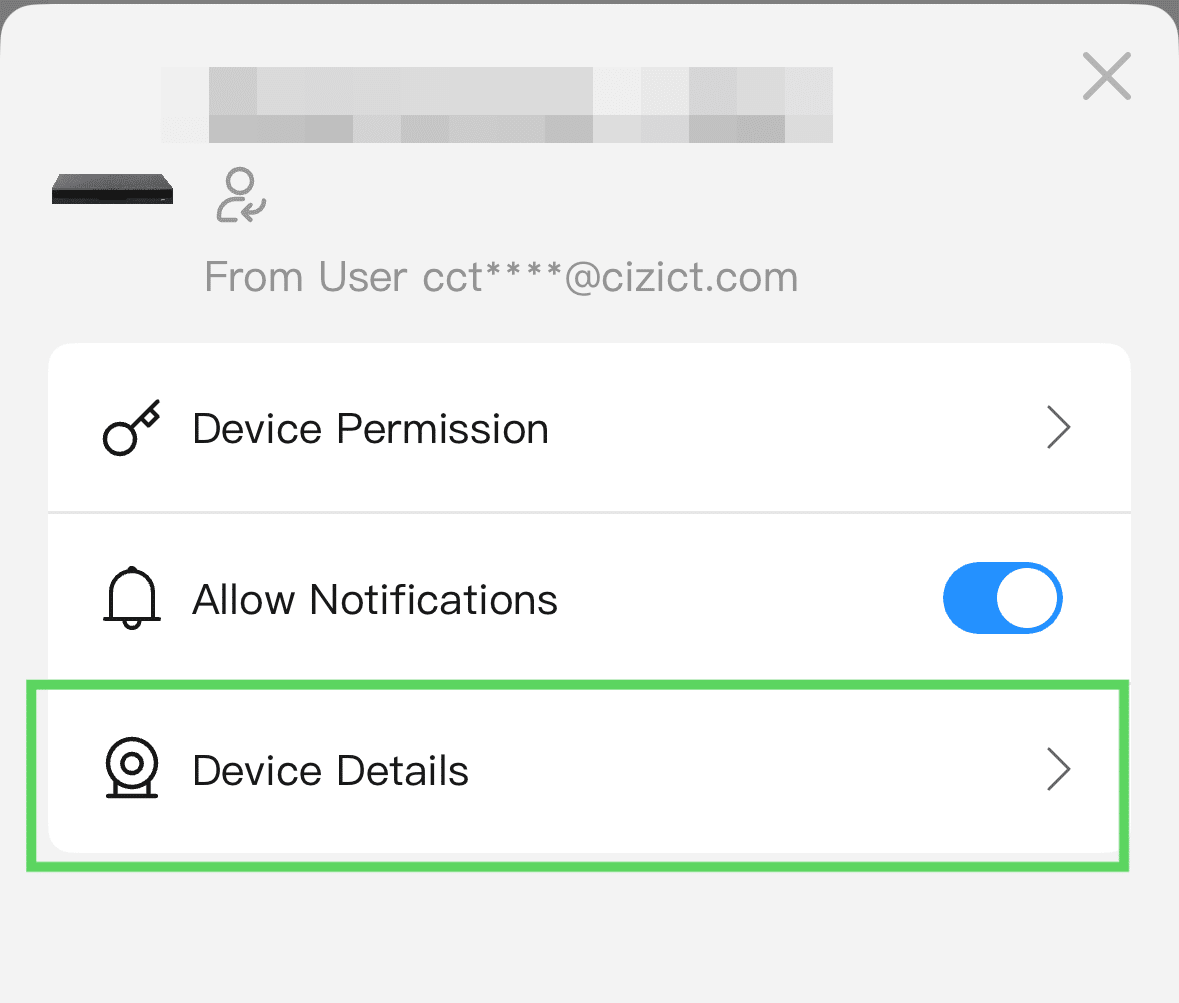
Under the Notification toggle, select Device Details
3.3. Configure Notifications – Alarm Type
Select Smart Alerts:
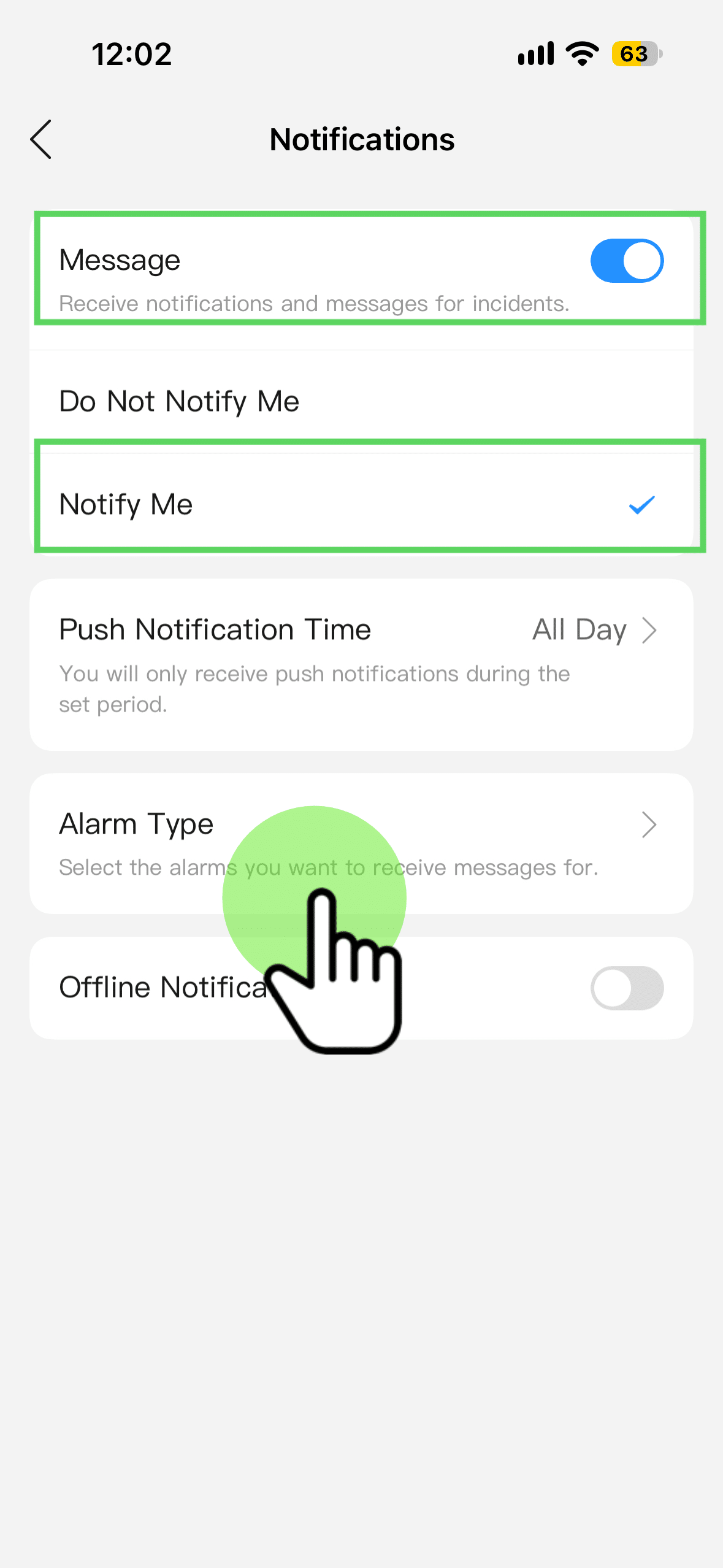
Check that the Message toggle is on and that Notify Me is enabled or selected.
Then select Alarm Type
3.3.1. Select Alarm Type
For the most accurate alerts, we recommend enabling AI-based motion detection so you are notified only when a person or vehicle is detected, significantly reducing false alarms.
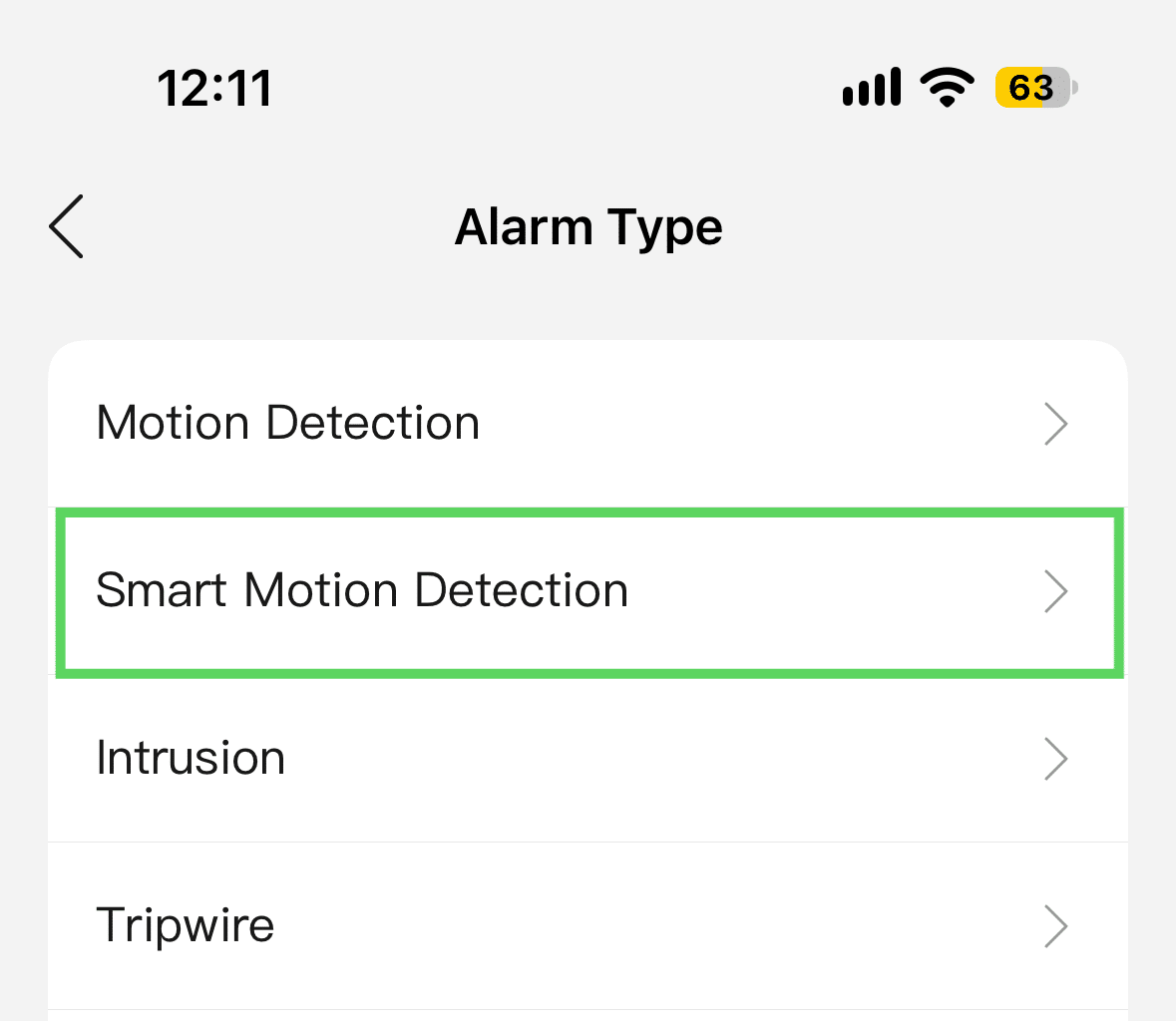
iPhone (iOS): Select Smart Motion Detection (SMD) from the list of notification types (as per the screenshot below).
Android: Select Motion Detection
4. Configure/Check each Camera
Once notifications are set up on the NVR, you can check each camera and toggle it on/off. To do so, click the three dots next to the camera, as shown in the image.
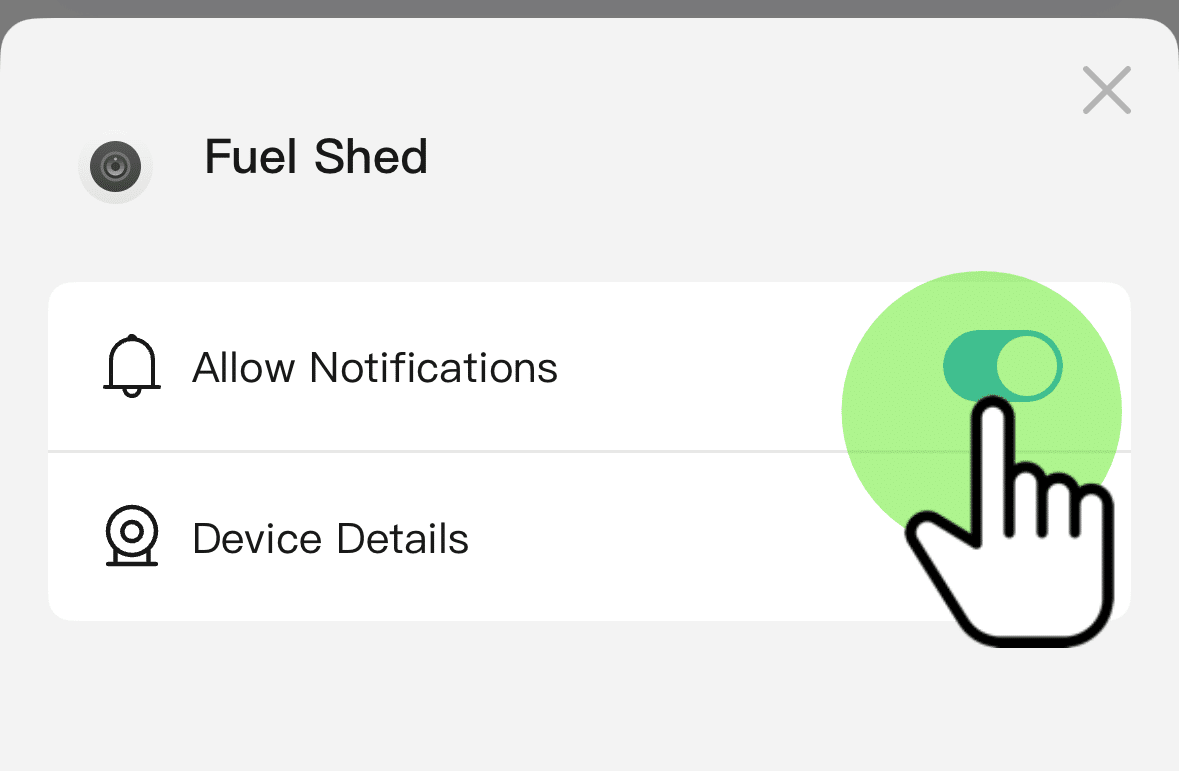
4.1. Turn Notifications ON/OFF
Once in the camera view, you can toggle notifications on/off for that camera only.
5. Troubleshooting
If you stop receiving push alerts on your phone, run through this simple 3-step checklist:
Verify Phone Permissions: Ensure your phone’s operating system hasn’t muted or restricted DMSS notifications or put the app into deep sleep mode.
Check the Main Switch: Open DMSS, tap the three dots next to your NVR, and verify that the top notification toggle is still ON.
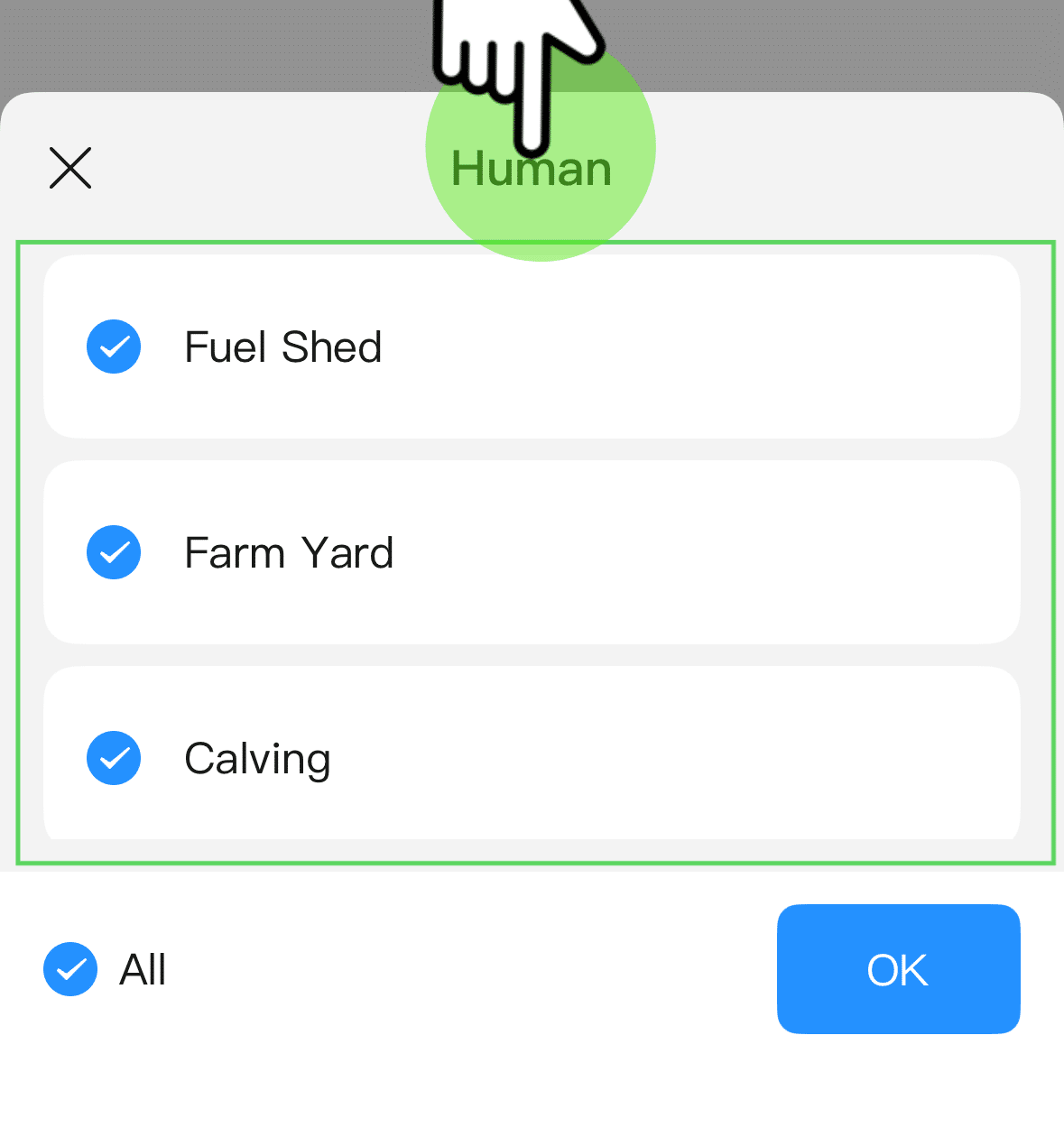
Confirm Camera Settings: Go into Device Details > Notification > Smart Motion Detection and ensure that notifications are selected and that the specific camera has an SMD checkmark next to it.
Why a camera might be silent:
If the Main Switch (the NVR) is turned ON but a specific camera still isn’t sending alerts, check that Smart Motion Detection/Motion Detection is enabled for that camera. See Step 3 in this guide.