
Skip to main content
How Can We Help?
Table of Contents
1. Go to office.com
- Navigate to www.office.com in your web browser
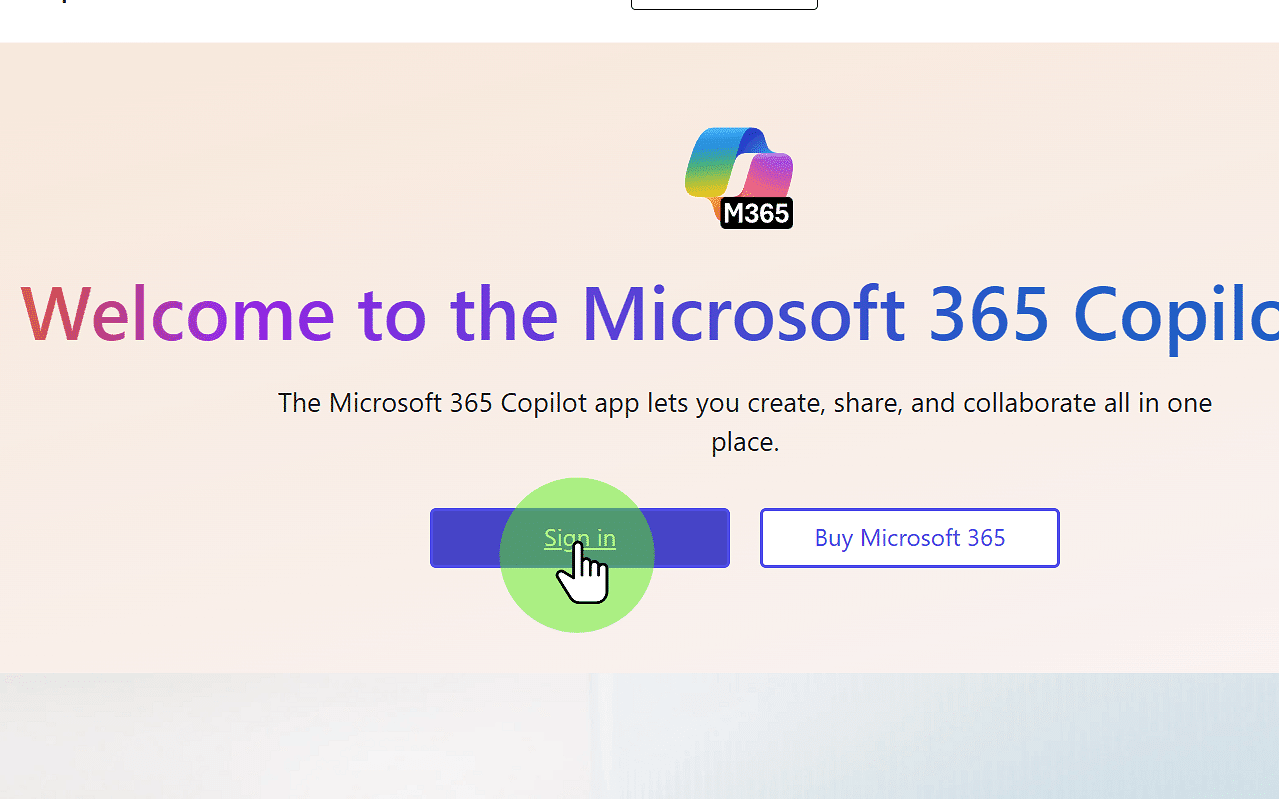
2. Sign In
- Click on Sign In
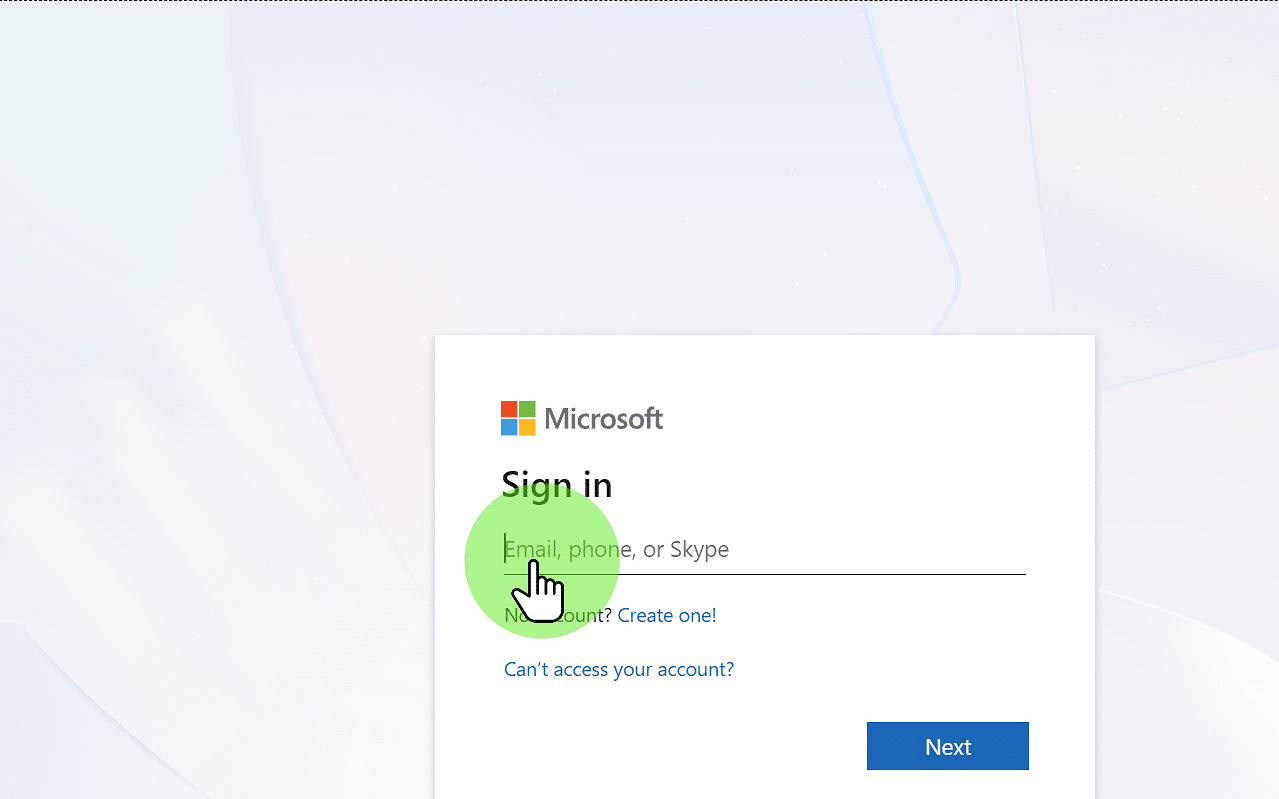
3. Enter your email address
- Enter email address
- Click Next
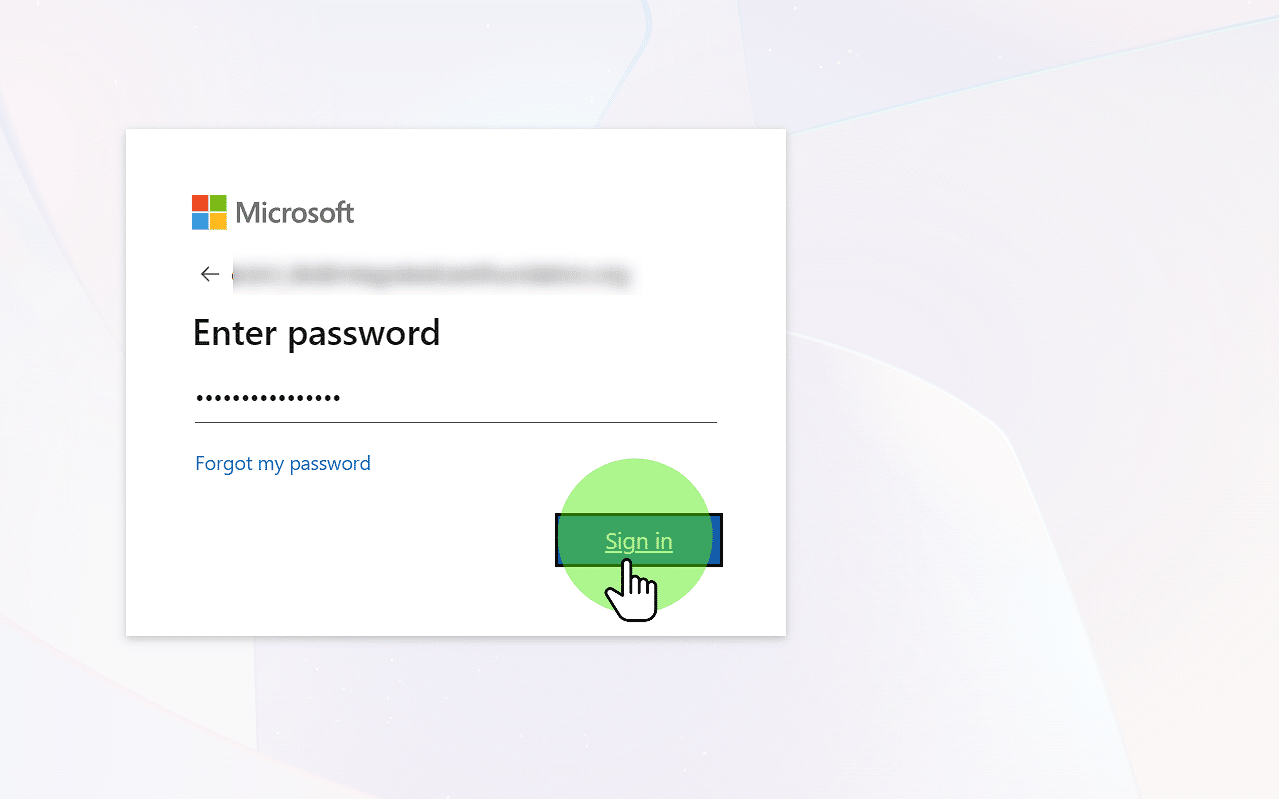
4. Enter Password
- Enter your Microsoft Password
- Click Sign In
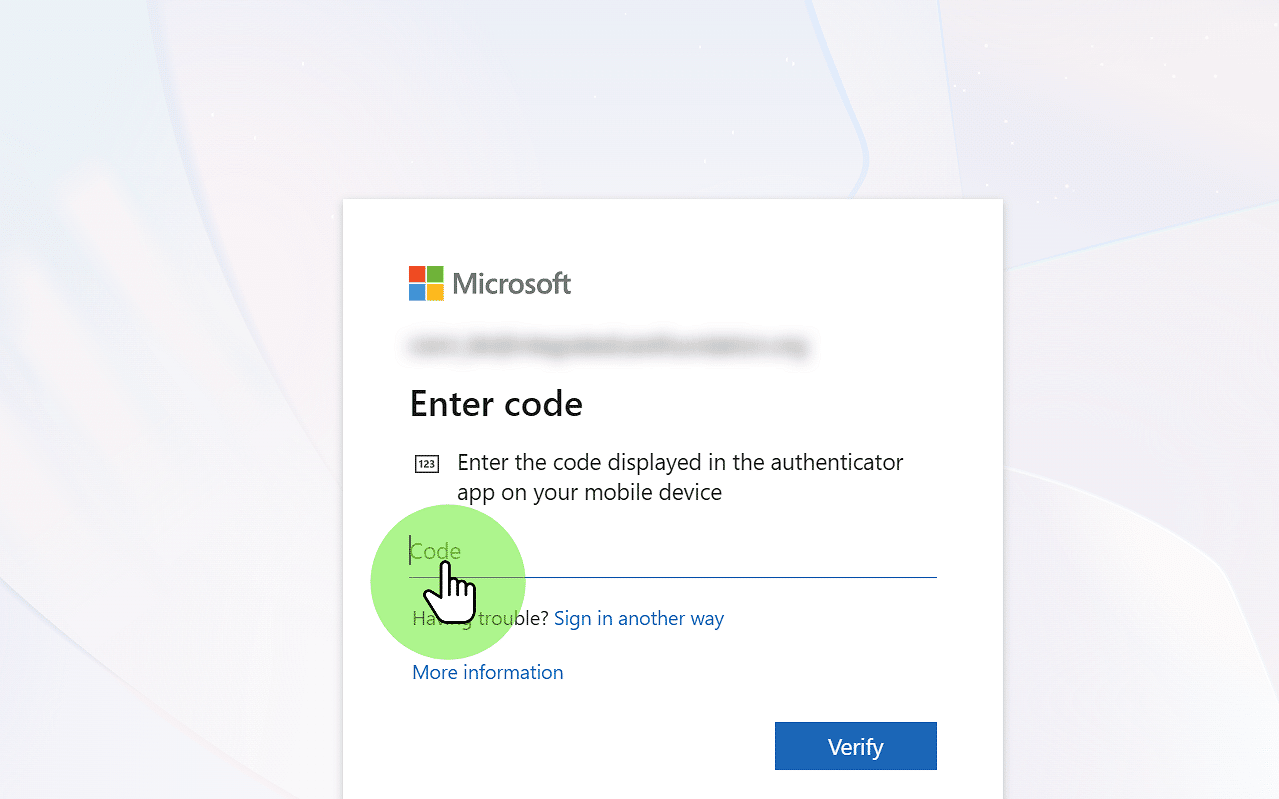
5. Multi-Factor Authentication
- Follow instructions on screen
- Click Verify
Note - if this is your first time logging in, you may be prompted to set up MFA. See the Microsoft guide here
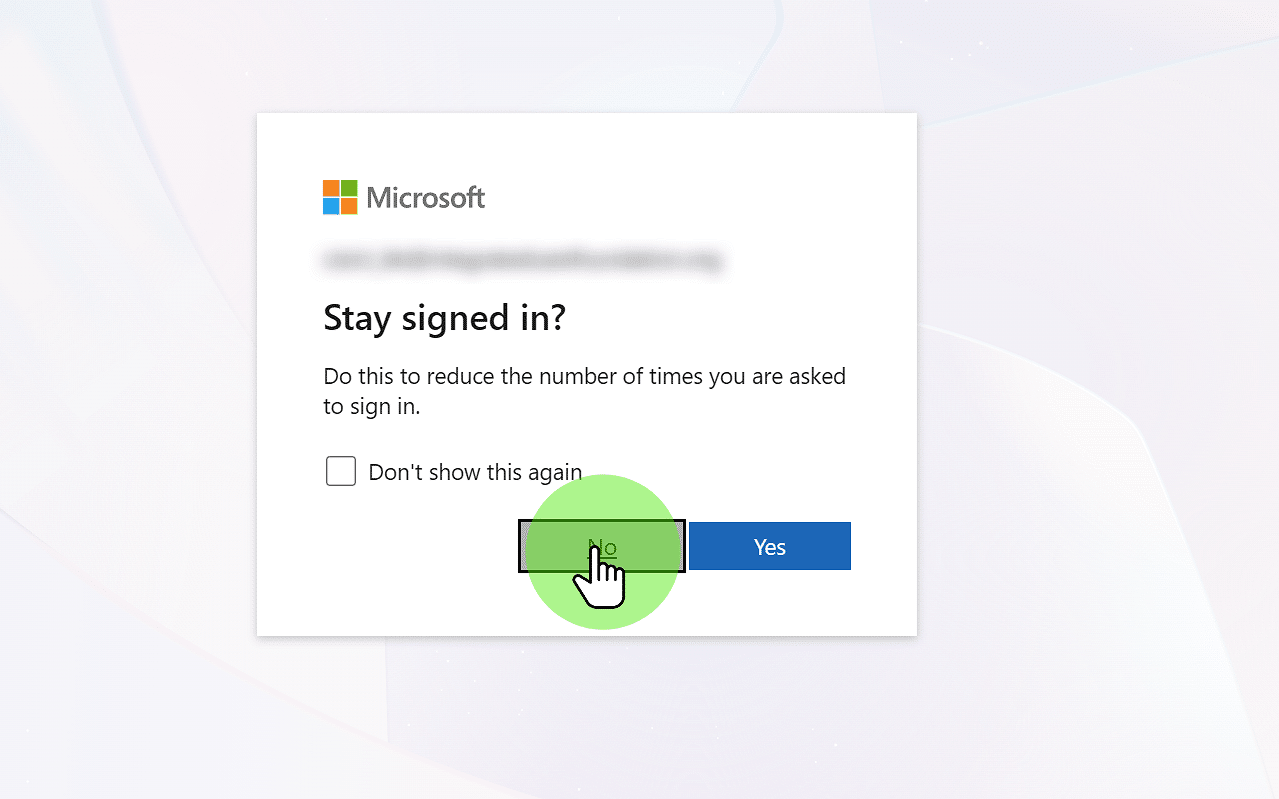
6. Click "No"
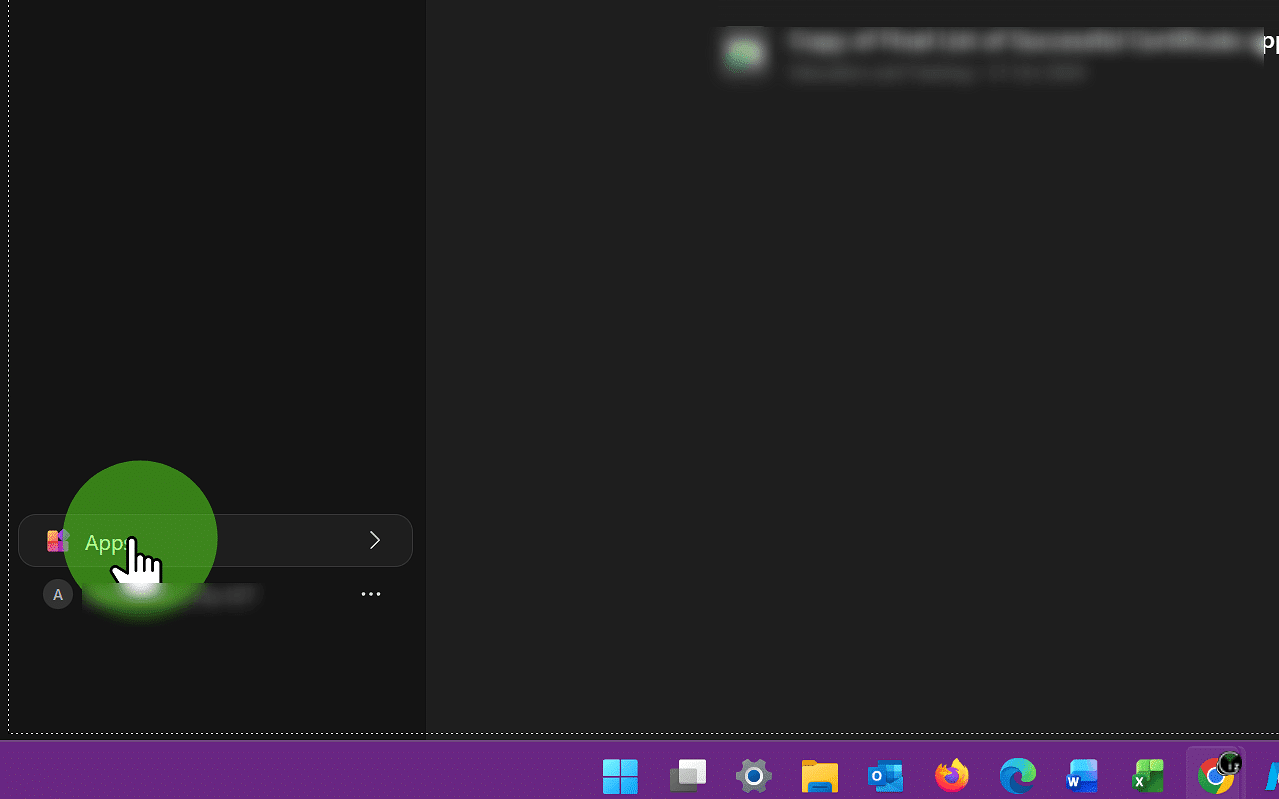
7. Navigate to Apps
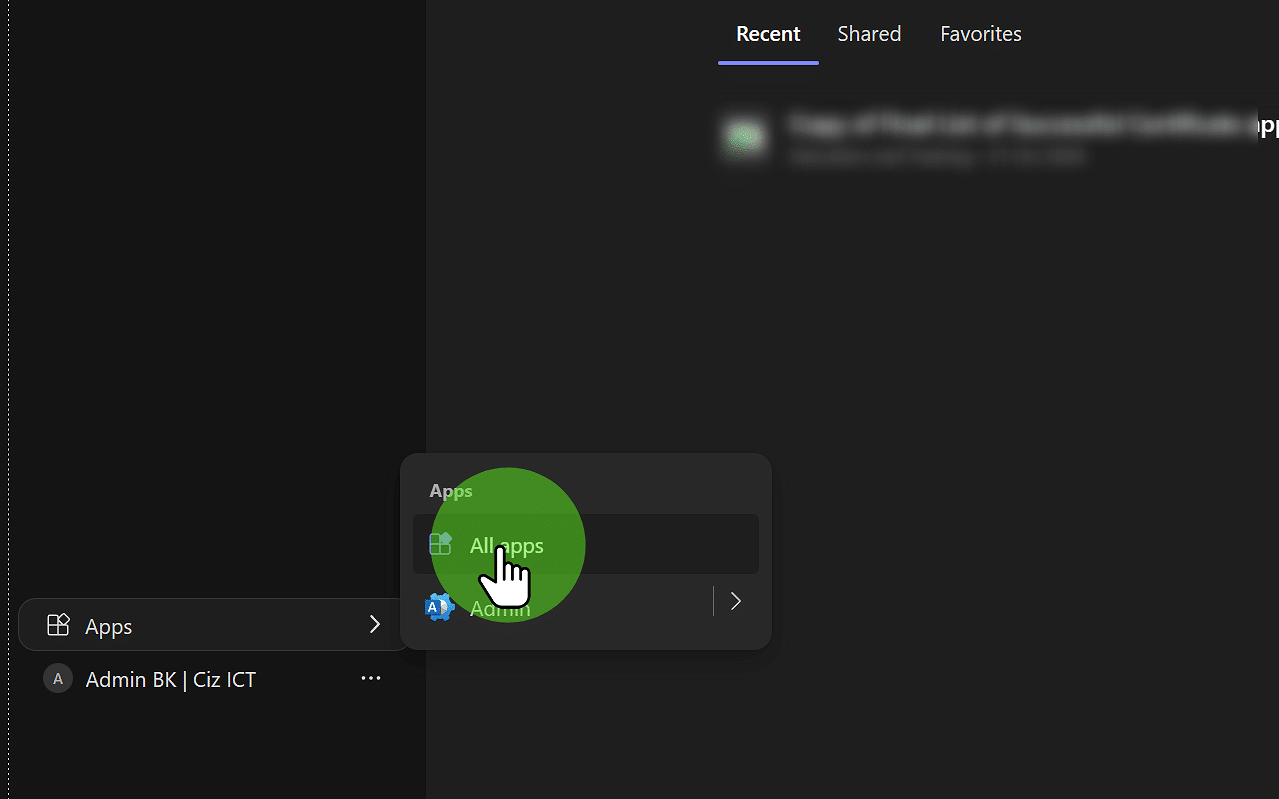
8. Click "All apps"
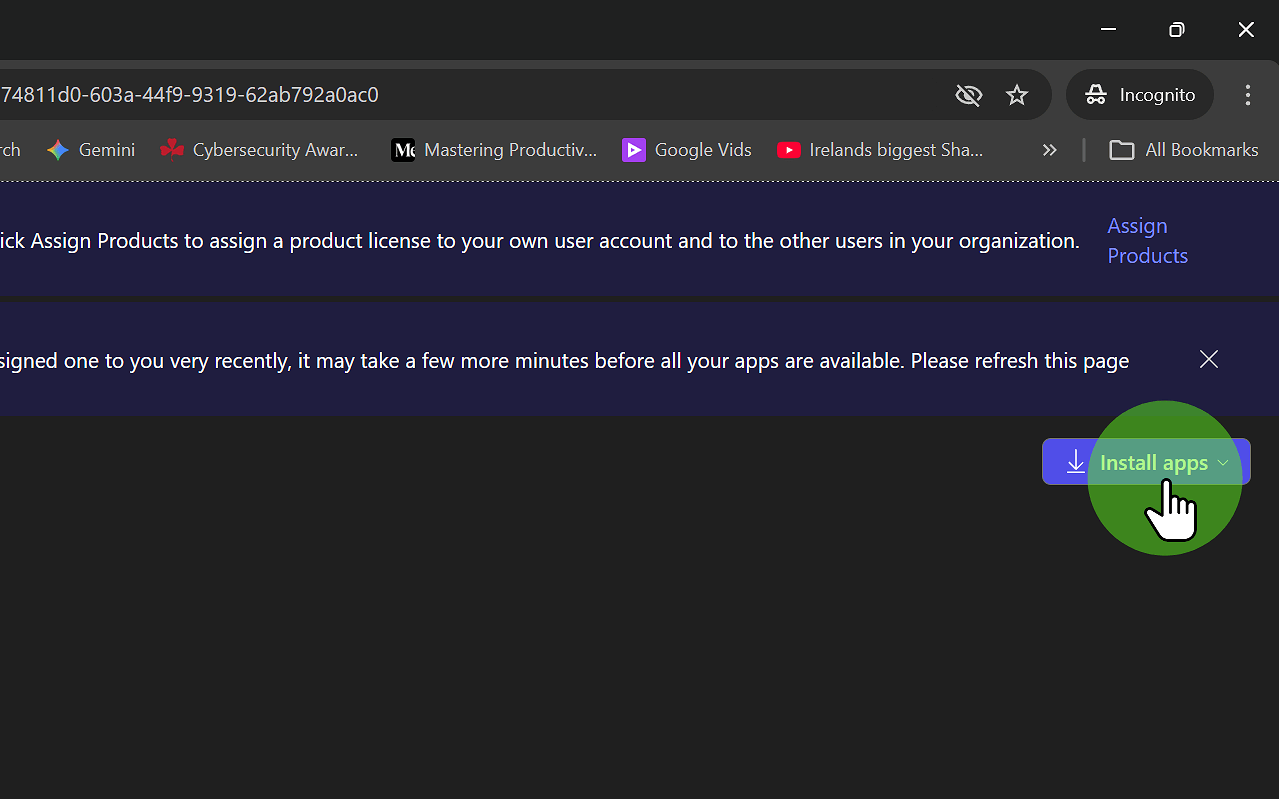
9. Click on Install Apps
- Click on Install Apps
- Select Microsoft 365 Apps
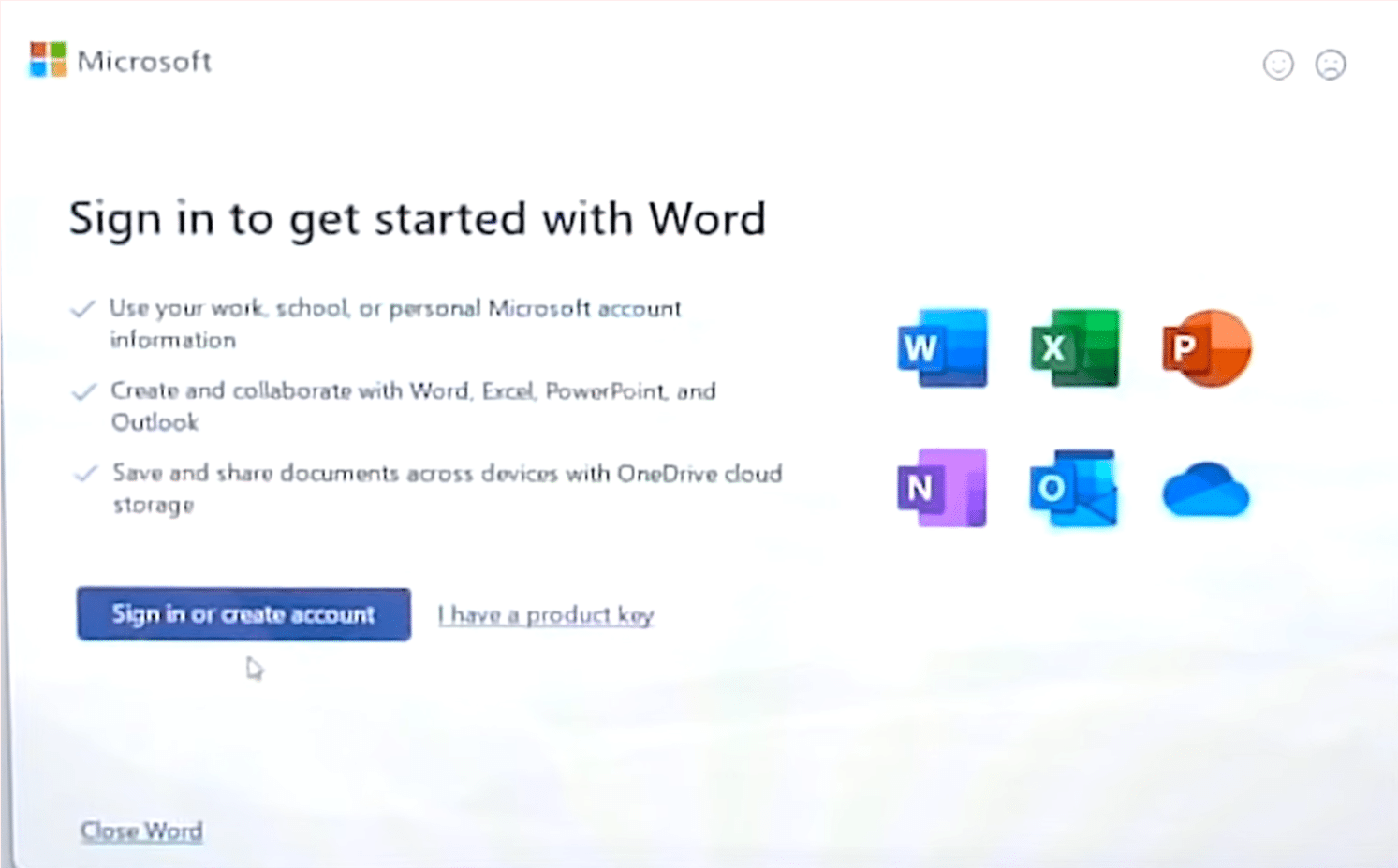
10. Activate Word/Excel
- Open Word/Excel
- Sign in with credentials when prompted
- If prompted to Sign in to All Apps, select No
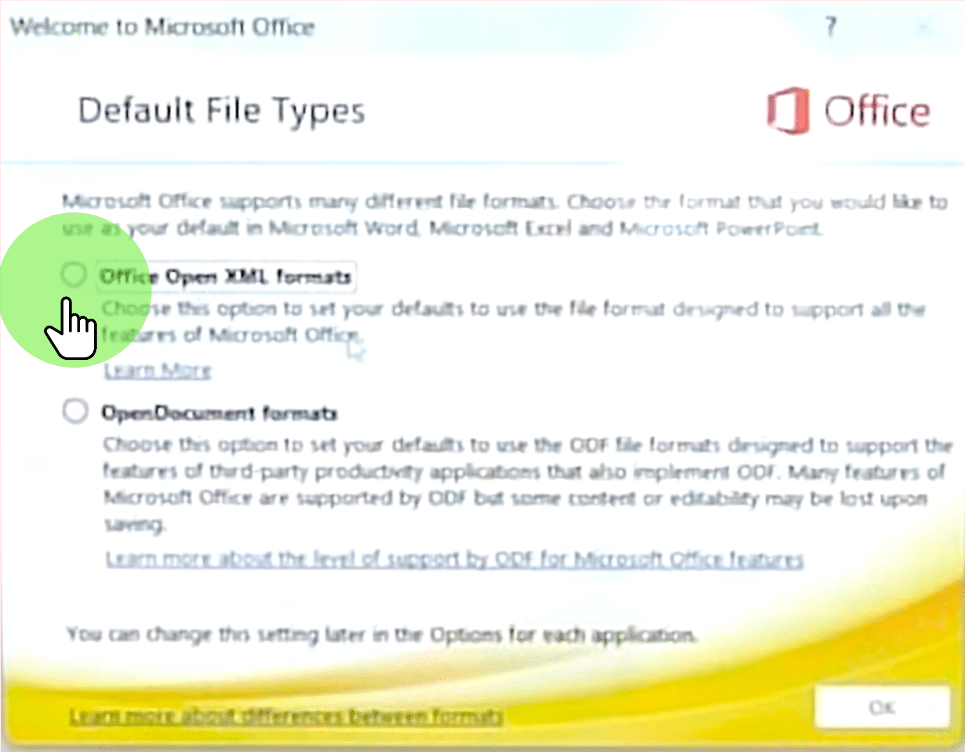
11. Select Default File Types
- Select Open XML Formats
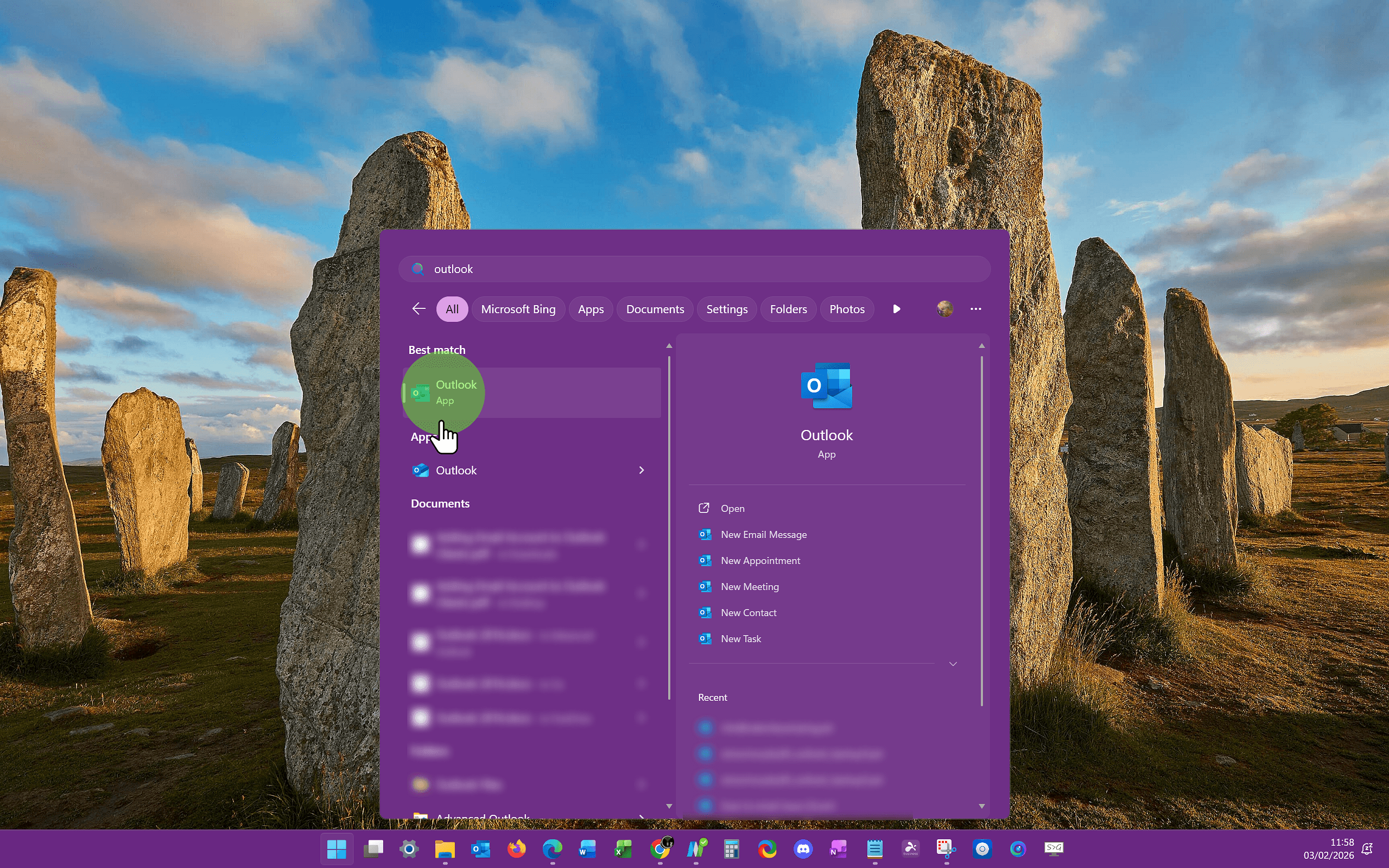
12. Activating Outlook Classic
- Click on Start
- Type "Outlook"
- Select Outlook Classic (Outlook Classic has the slightly squarer design)
- Enter your username and password when prompted
- If you are asked to Sign in to All Apps, select No