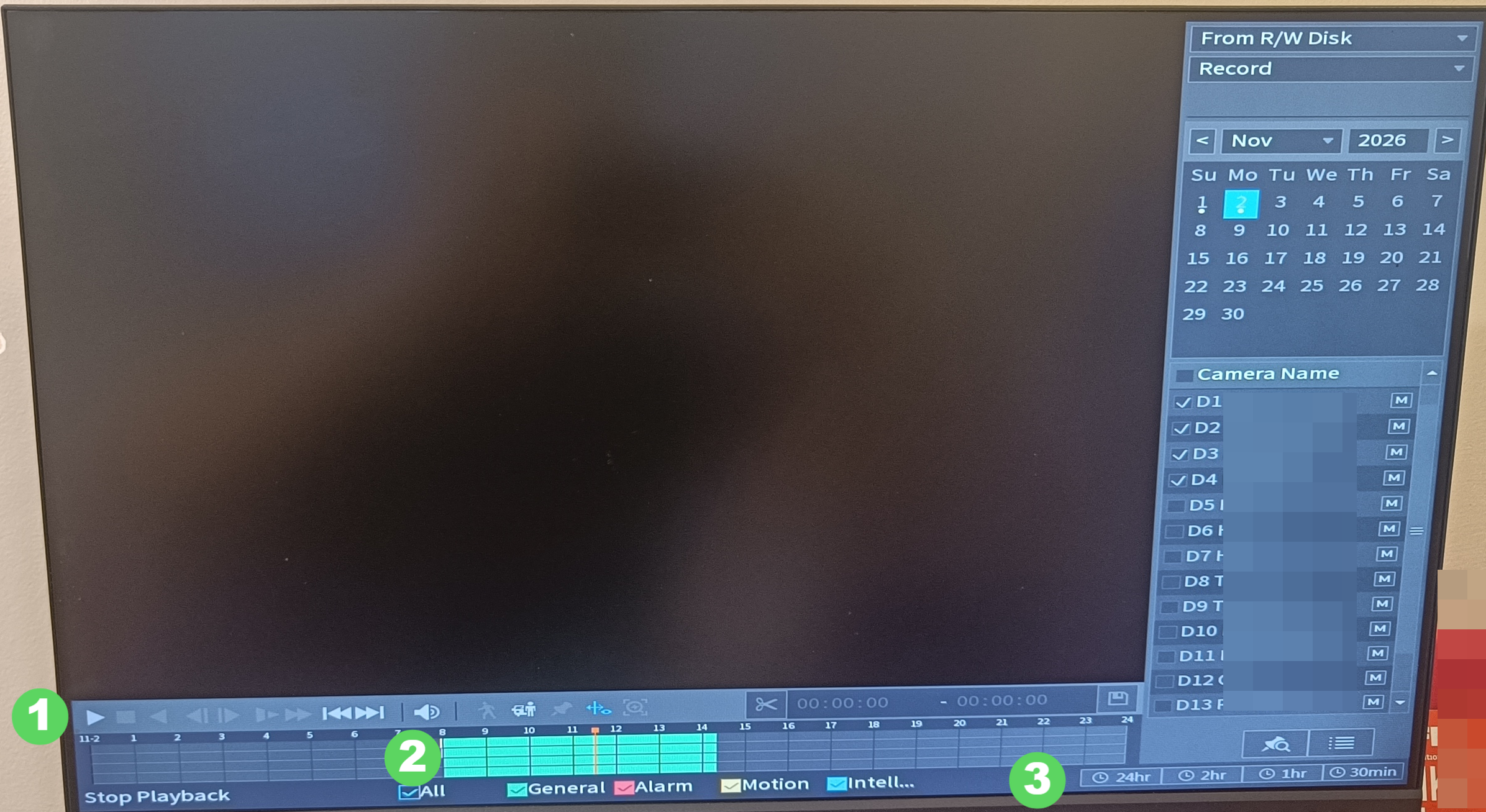
Learn how to quickly find and review recorded video footage directly on your Dahua NVR via the Dahua NVR playback menu. This step-by-step guide will lead you through selecting your cameras and scrubbing through the colour-coded timeline.
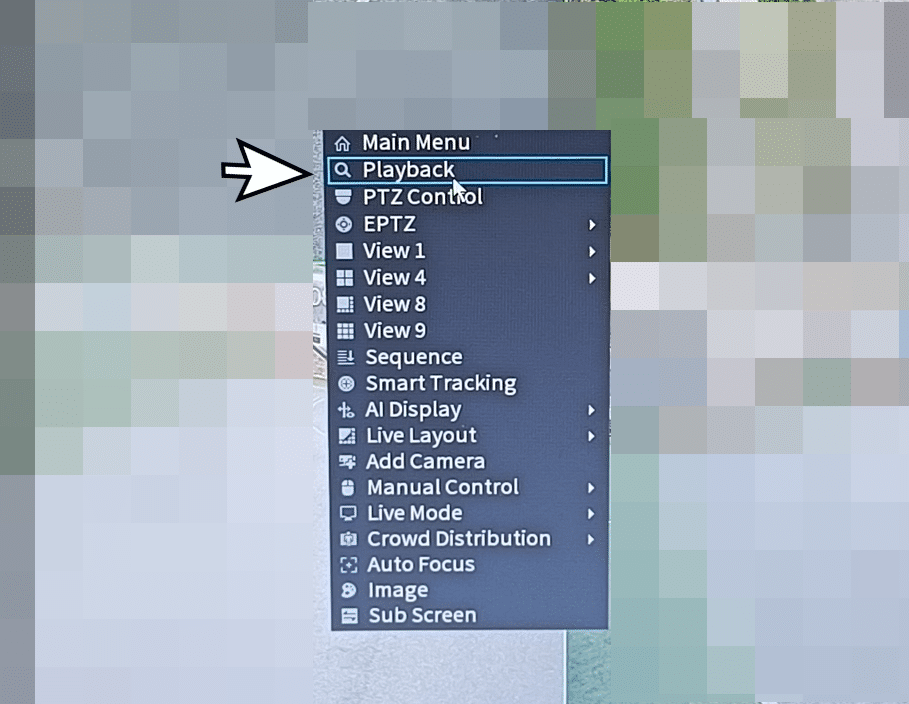
1. Right-click on Live View Screen
Right-click anywhere on the live view screen (where you can see your camera feeds) to open the quick-access menu, then left-click Playback.
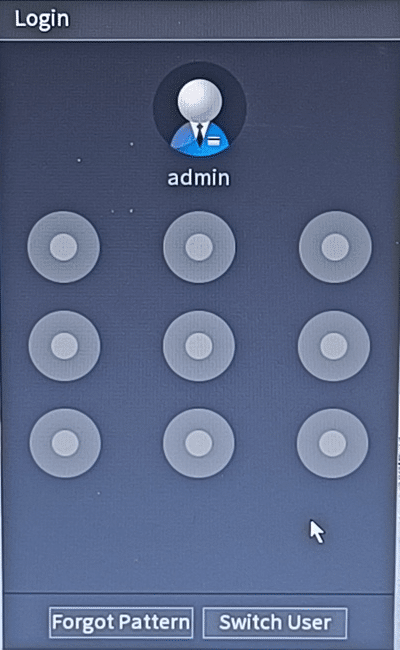
2. Login
Draw your unlock pattern to log in.
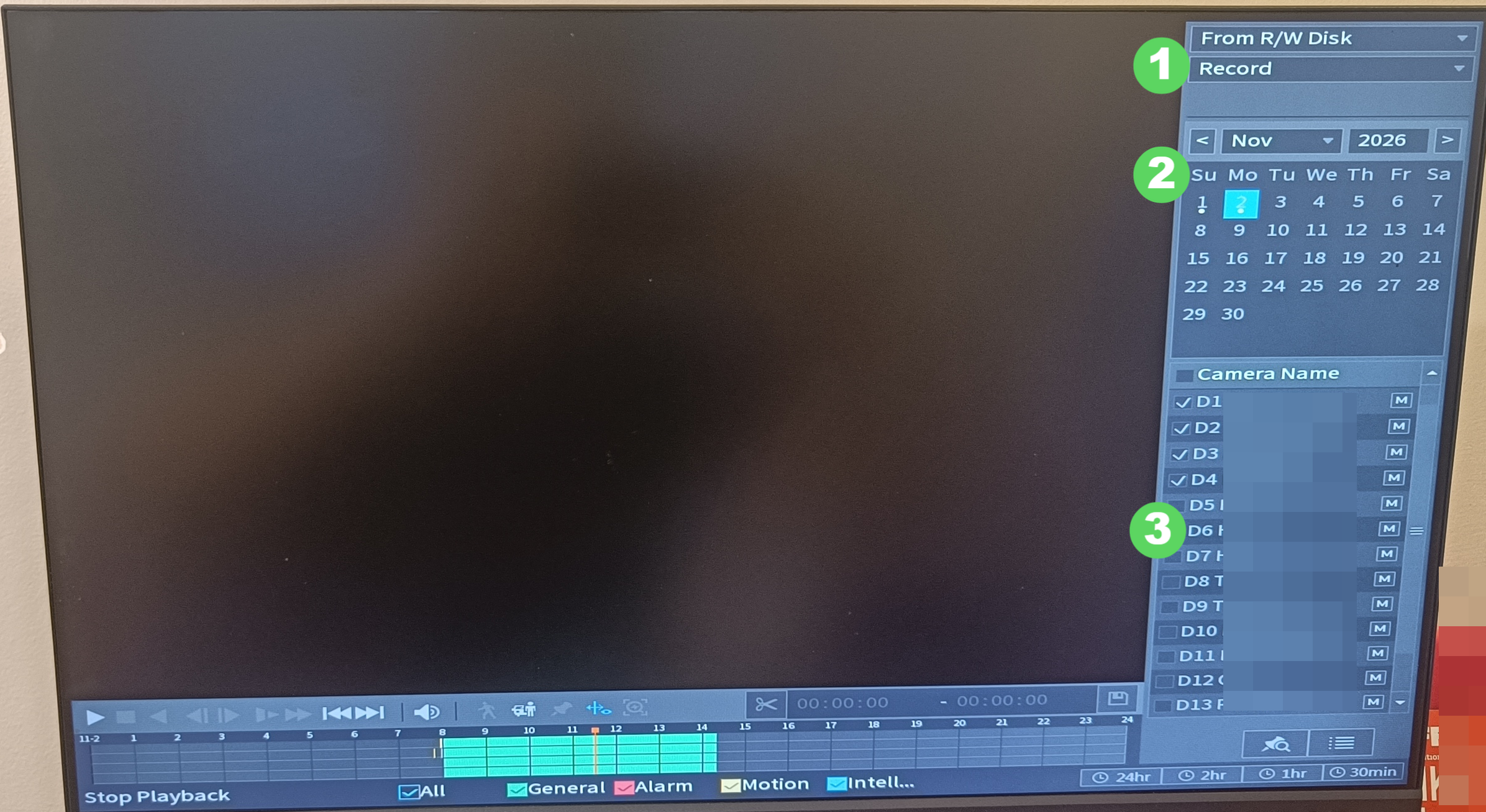
3. Playback - Select Camera (s) and Dates
Use the control panel on the right-hand side of the screen to filter your recordings by date and camera.
1. Ensure the playback type dropdown at the top right is set to Record
2. Click the date you want to review on the calendar. (Tip: Dates containing saved video will display a small dot under the date).
3. Tick the box next to the camera you want to view.
4. Navigating the Timeline & Playing Footage
1. Click the Play icon in the bottom-left toolbar (or double-click directly on a colored bar in the timeline) to start watching.
2. Use the colored bars on the timeline to spot activity:
- Green indicates continuous 24/7 recording
- Yellow/Orange indicates motion or smart-event detection
- Red indicates an alarm trigger.
Left-click anywhere along the horizontal timeline bar to jump directly to that exact hour and minute.
3. Click 2hr, 1hr, or 30m in the bottom-right corner to expand the timeline. This makes it much easier to scrub accurately through short events.