This guide will take you through setting up notifications in the DMSS App.
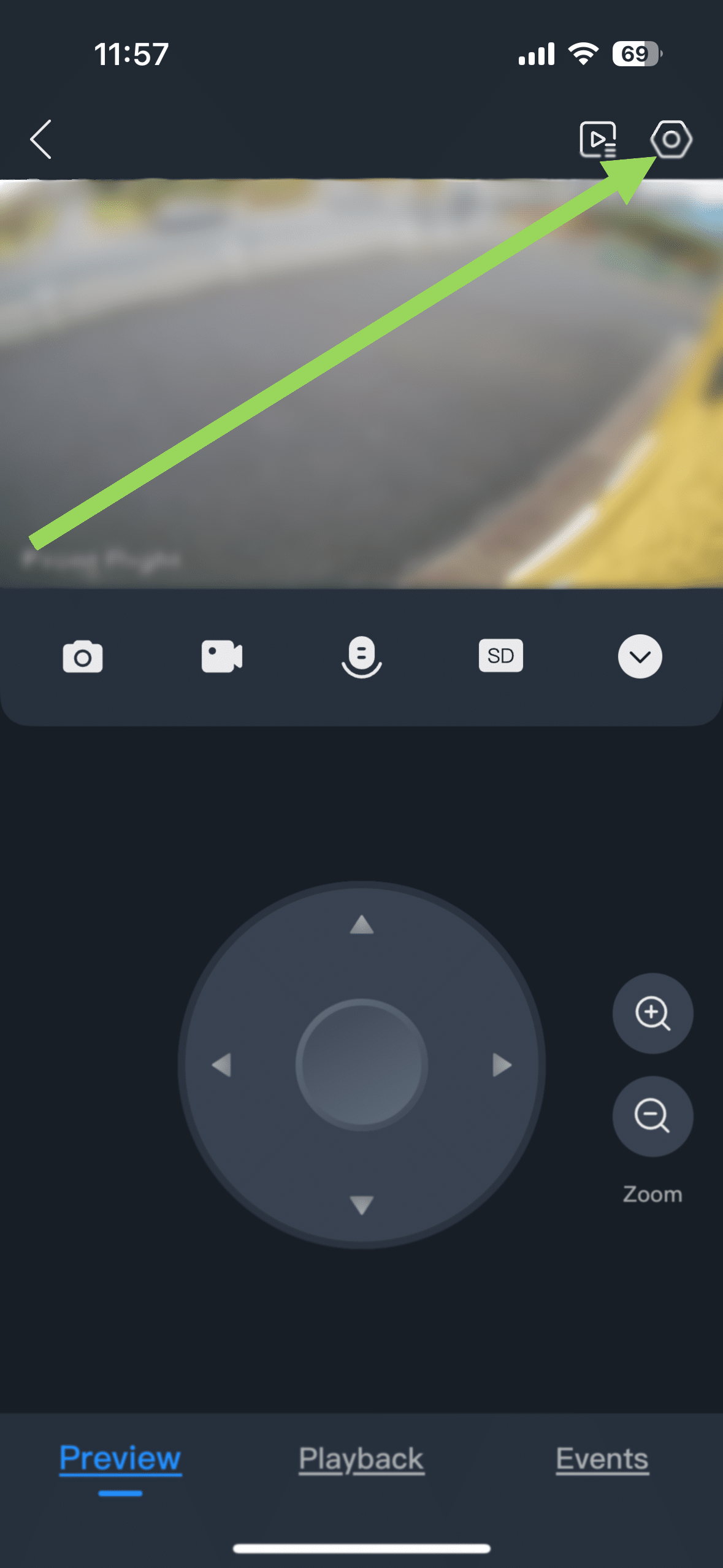
1. Select Camera
Select the camera you want to enable notifications for by double-clicking on it to fill your screen.
It should be the only camera visible, like below, and select the Settings cog in the top right.
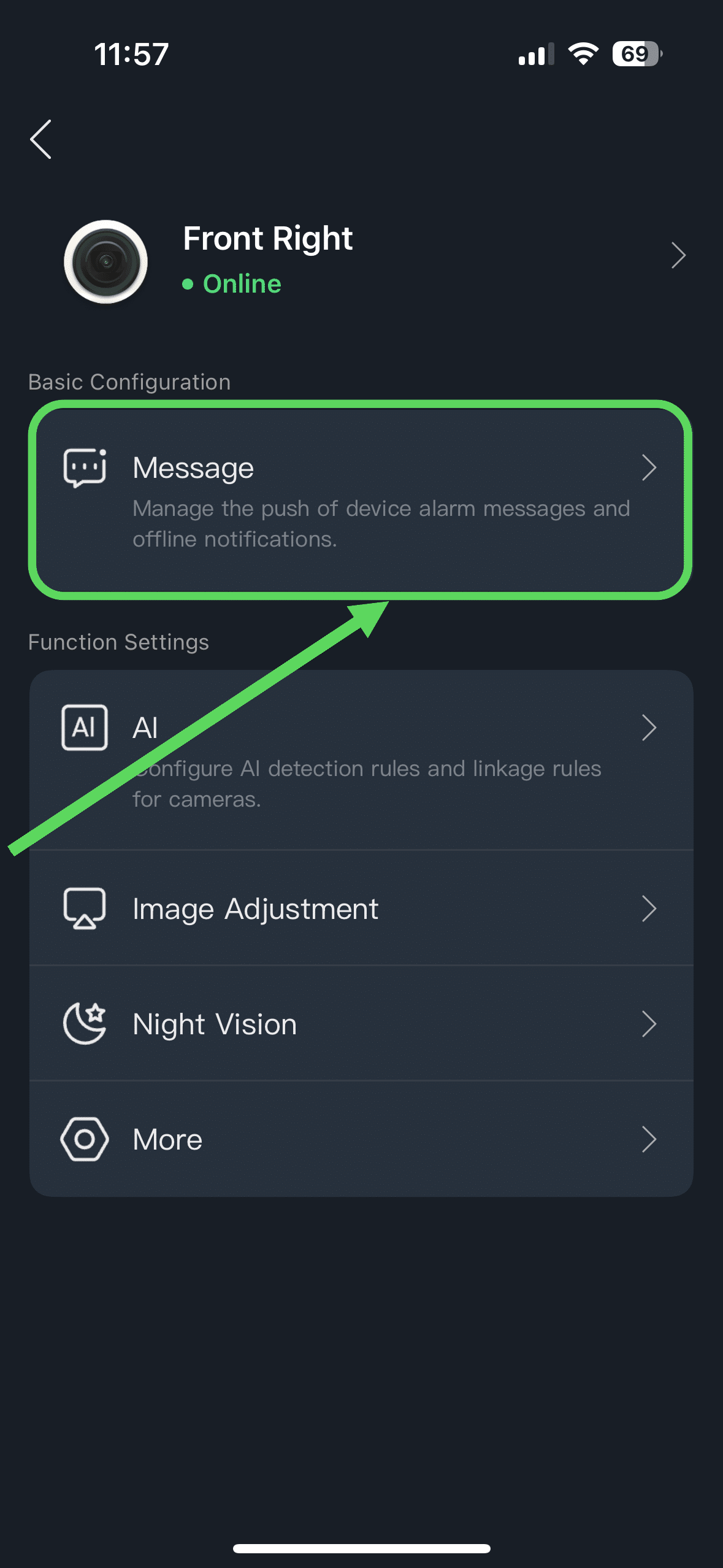
2. Select Message (Notifications)
Select Message to manage notifications for the selected camera.
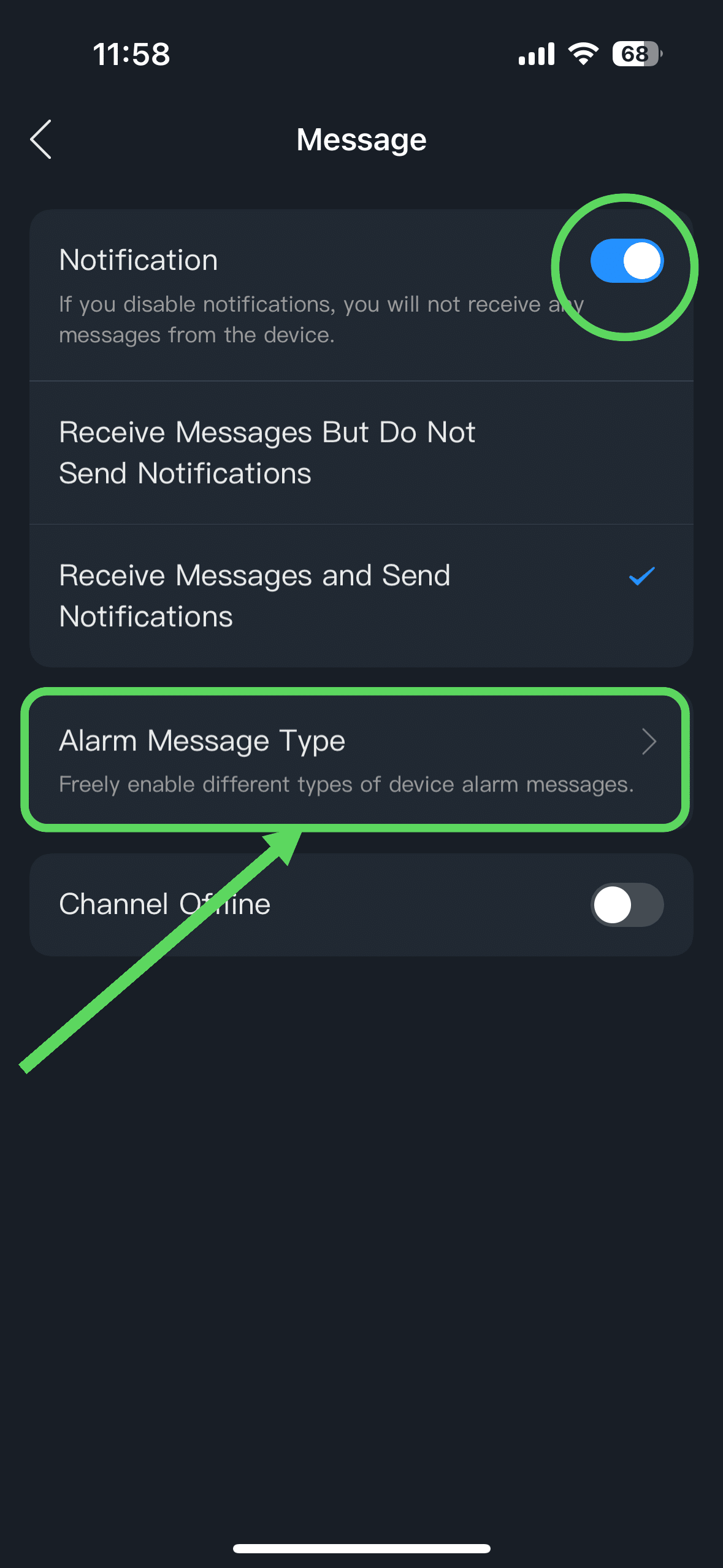
3. Enable Notifications/Select Alarm Message Type
Toggle Notifications On.
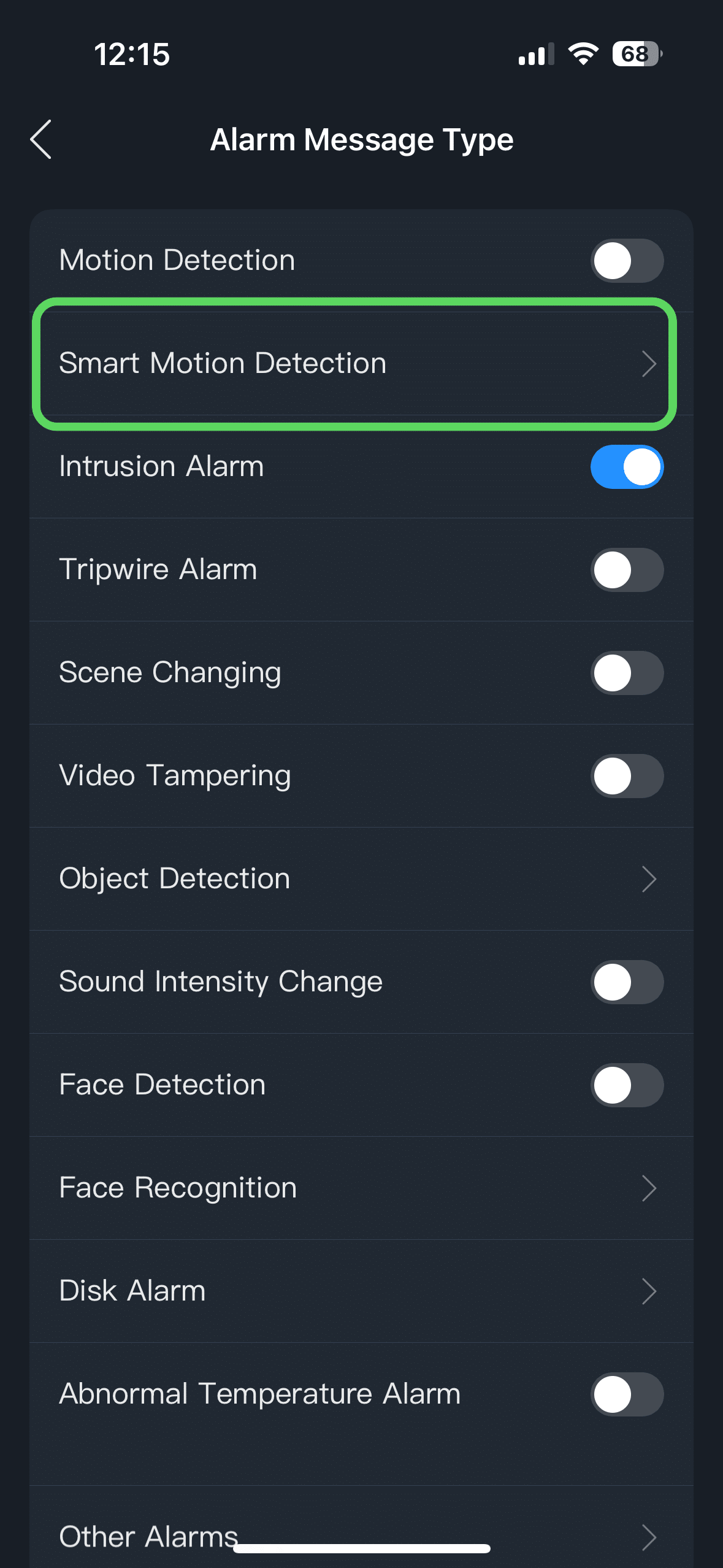
Then, select Alarm Message Type to configure the notifications/message types.
4. Select Smart Motion Detection
We would advise selecting SMD (Smart Motion Detection) rather than basic Motion Detection to reduce the number of notifications that you receive.
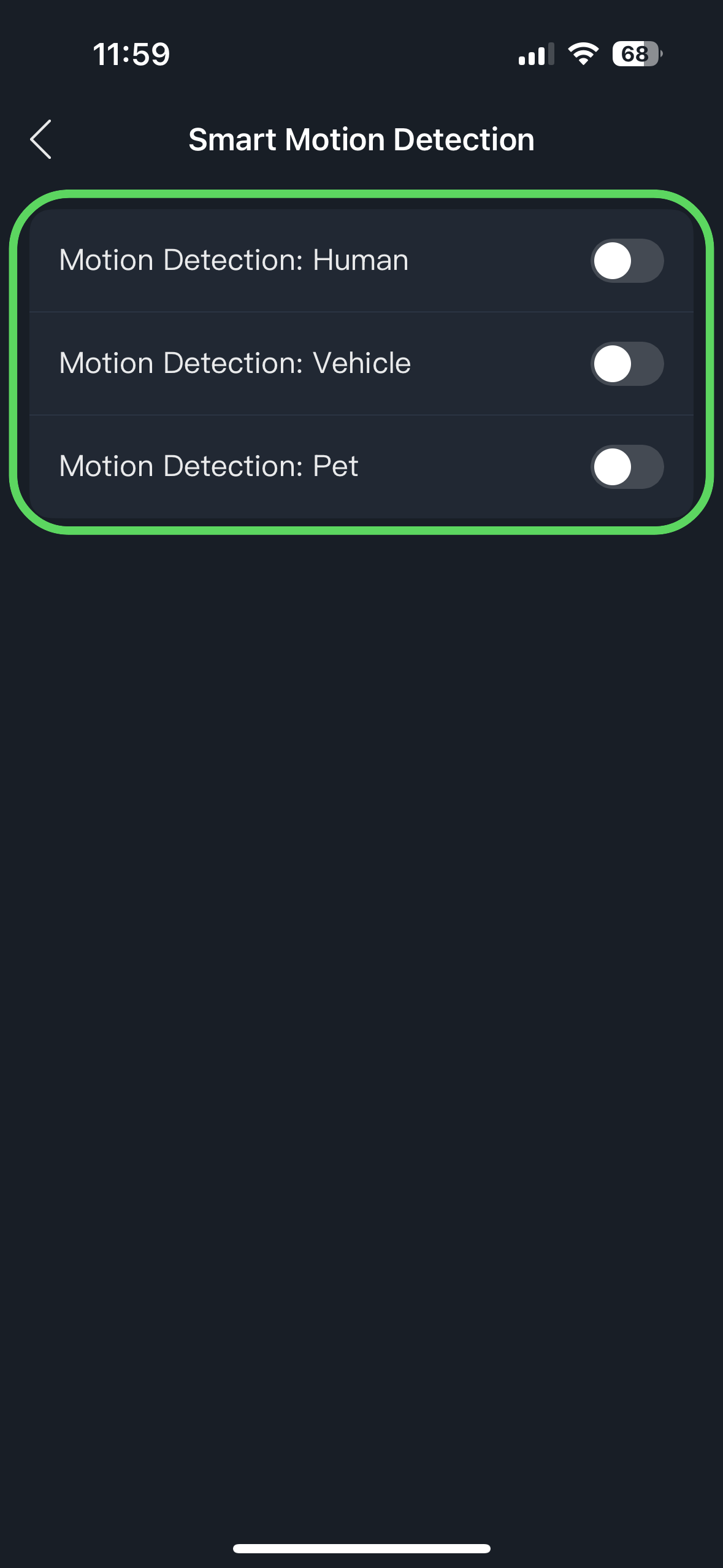
5. Select Notification Types
Then, select the types of notifications you would like to receive.
6. Enabling iPhone notifications for the DMSS App:
Open Settings on your iPhone
Scroll down to Notifications and open
Scroll down to the DMSS App and open
Toggle the ‘Allow Notifications’ to on
Change Critical Alerts and Lock Screen Appearance as required.
7. Enabling Android notifications for the DMSS App:
Open Settings on your phone
Go to Notifications -> App Notifications
Locate DMSS and toggle it on.