The HKC SecureComm 2 App allows alarm owners to manage and monitor their security systems. This guide will go through the steps to download and setup the app on your mobile phone.
Note – Before setting up the app, your alarm panel must have an active communicator (WiFi, LAN, or 4G/GSM) and a SecureComm cloud subscription enabled by your installer.
1. Before You Begin: Prerequisites & Requirements
Checklist Requirements
Smartphone & App
- iOS device running iOS 13+ or Android device running OS 8.0+.
- An active mobile data or WiFi internet connection is required.
Registration Information
- Installation ID – this would be provided by your installer
- Password – this would be provided by your installer
- User Code – Your regular 4-digit PIN code used to arm and disarm the alarm system at your keypad.
2. Download from the App Store
Go to the App Store on your mobile phone and search for ‘HKC SecureComm 2’.
Verify the publisher is listed as HKC Ltd.
3. Open the SecureComm 2 App
Open the downloaded app on your mobile phone.
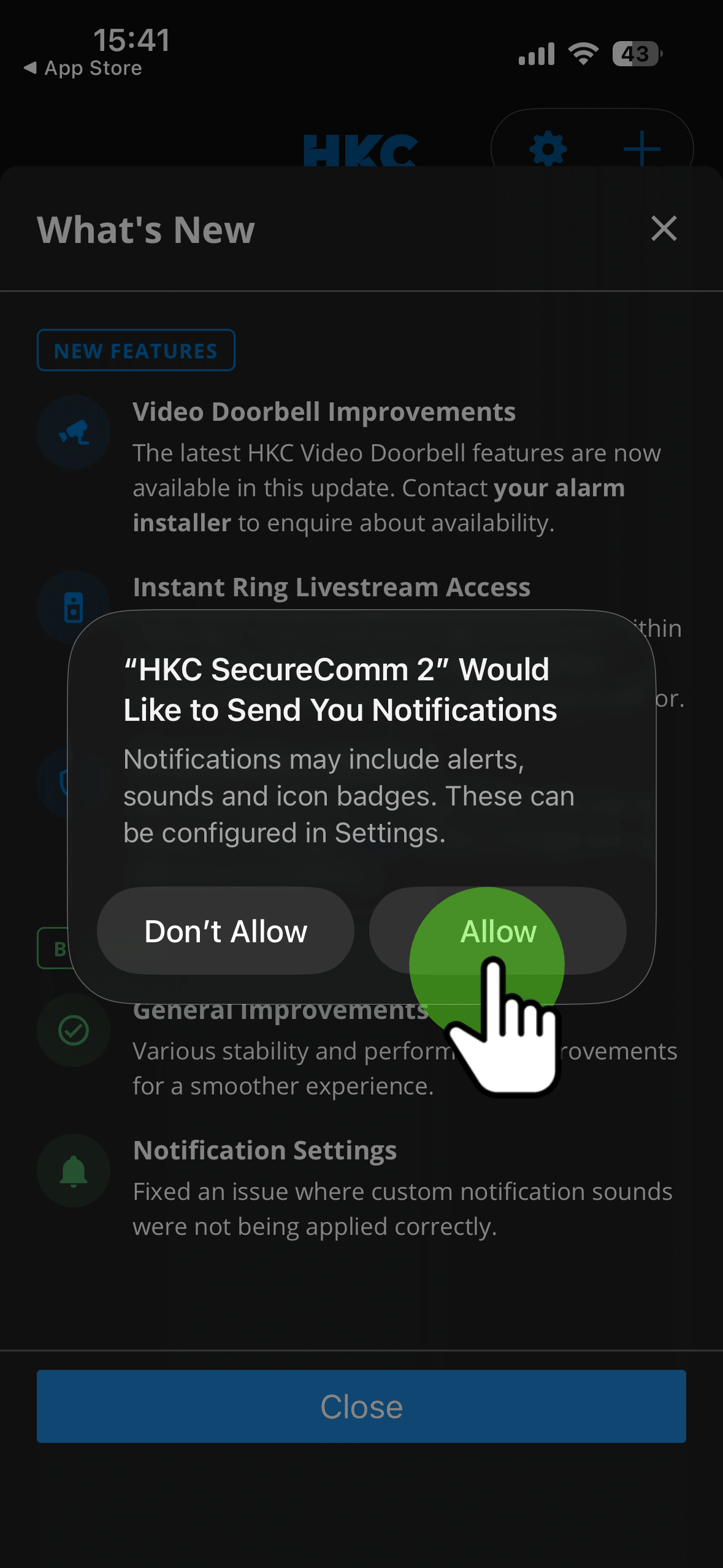
Note: You may be prompted to allow notifications (Select Allow).
4. Review & Close New Features
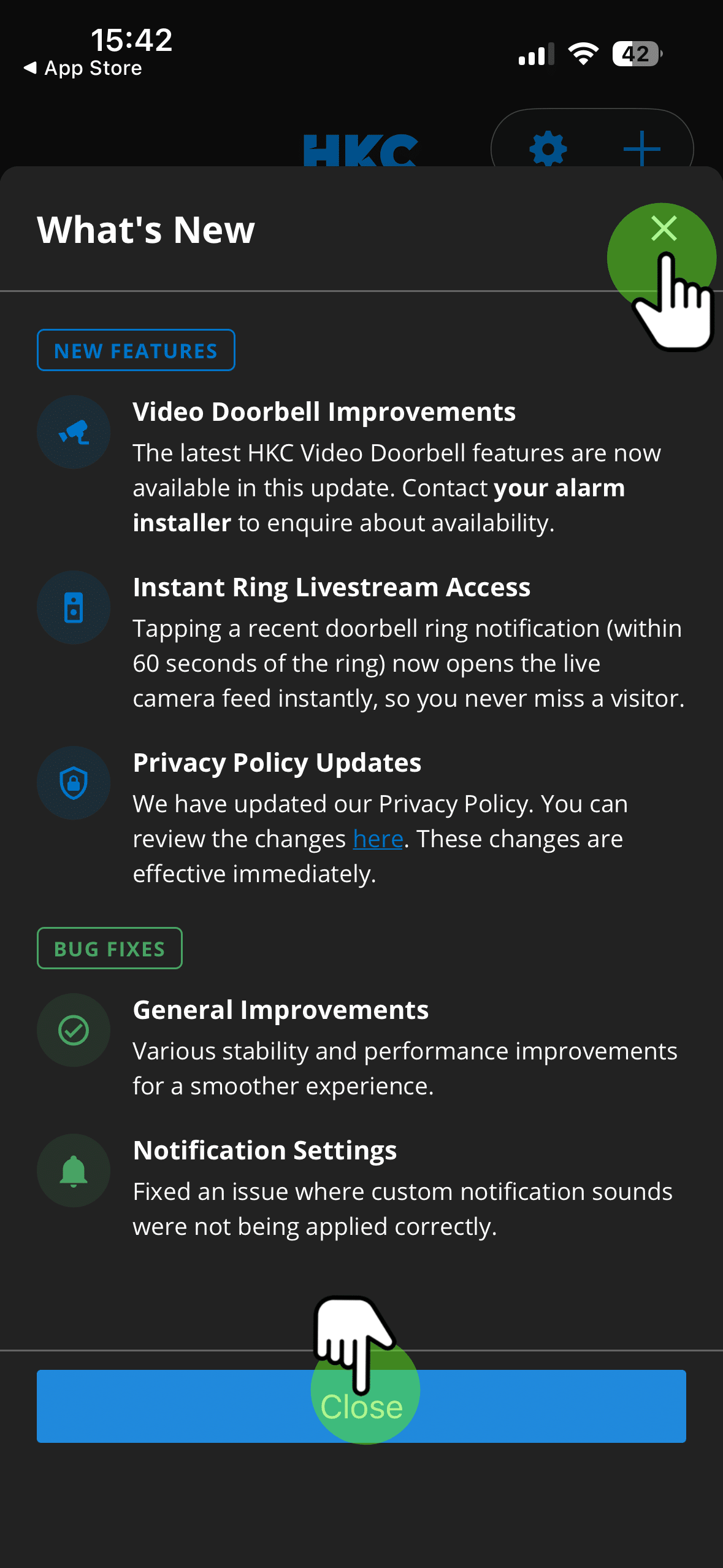
You may see a window listing new Features, after reviewing, you can close this by:
- Selecting the X in the top-right corner or,
- Clicking Close at the bottom
5. Add a Site
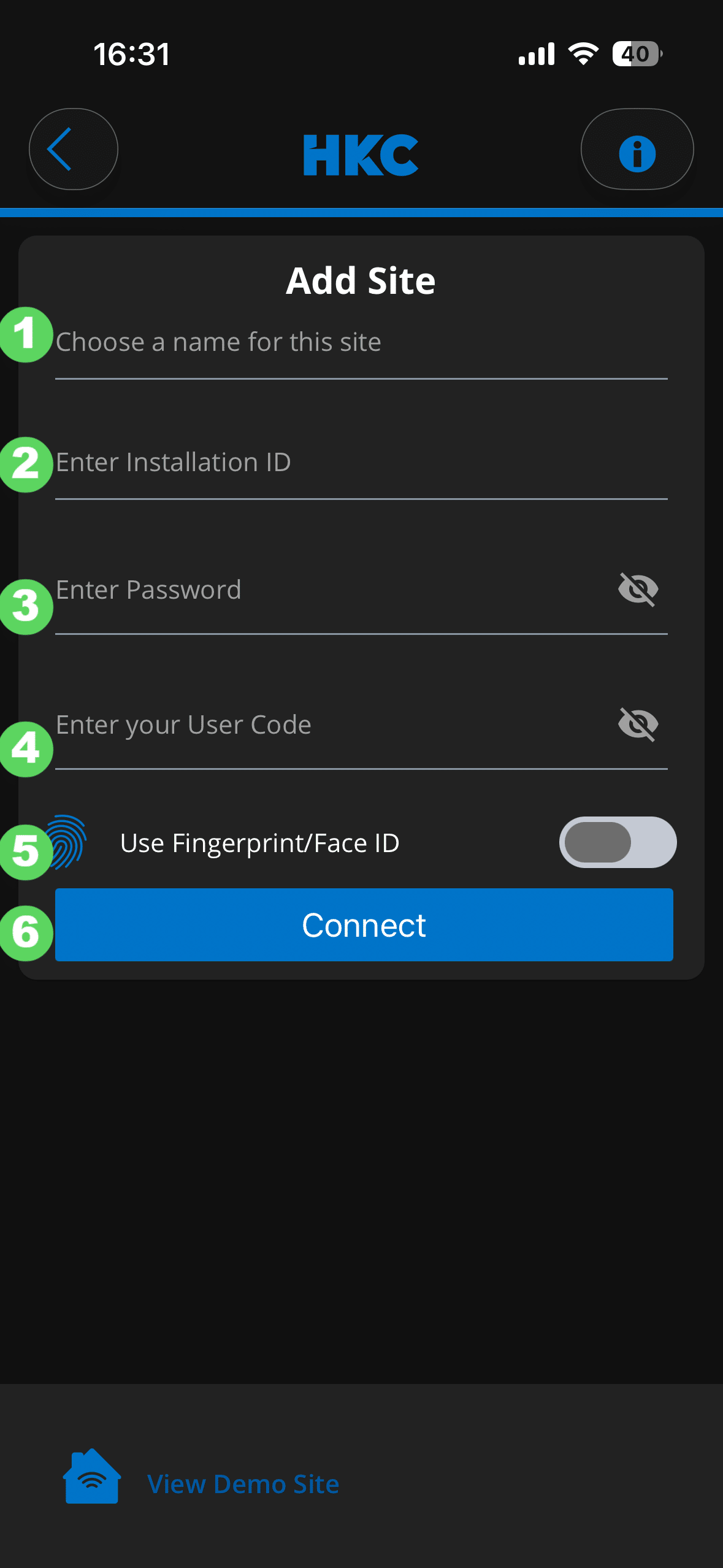
You will now be prompted to add a site. When opening the app, users pair their system using the direct Add Site form fields shown on screen:
- Choose a name for this site: Enter a friendly label (e.g., Home, Office, Store).
- Enter Installation ID: Type the numeric Installation ID (this will be shared by your Registered Installer)
- Enter Password: Type the password shared by your Registered Installer. (Note: Passwords are case-sensitive—enter capital letters exactly as shown on the keypad screen).
- Enter your User Code: Type the standard 4-digit or 6-digit keypad PIN used to arm/disarm the panel.
- Use Fingerprint/Face ID (Optional): Toggle the switch to enable biometric login for faster app access.
- Tap Connect to link the system to the phone