This guide explains how to "cut" a specific clip from your recordings, save it to your phone and share the clip.
Note - When sharing CCTV clips, please ensure you are complying with data protection laws (such as GDPR) by only sharing footage with authorised parties and avoiding the disclosure of private individuals' images without a valid legal reason
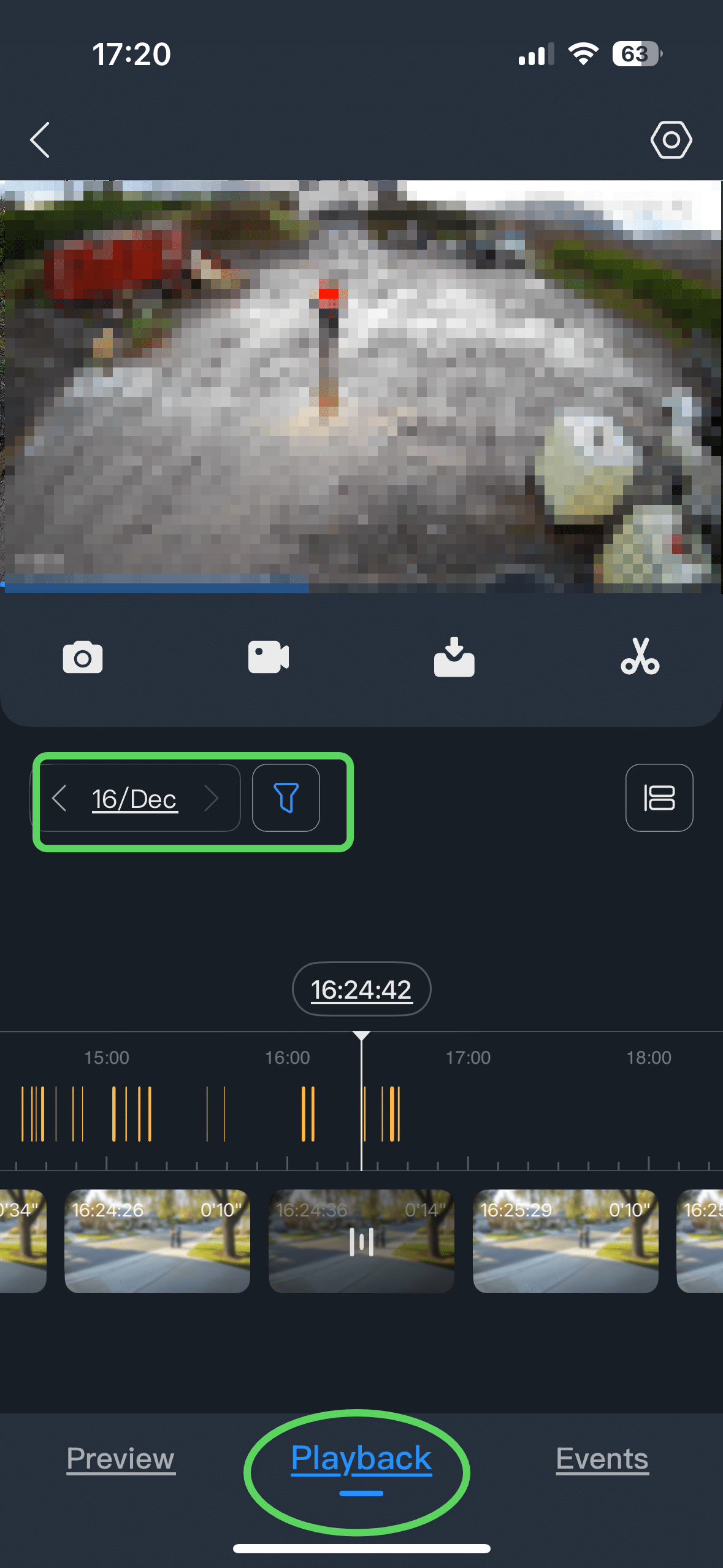
1. Open Playback
Open the DMSS App.
Select the camera that contains the recording
Tap Playback (or tap a camera and select "Playback").
Select the correct Date and Time so you are watching the event you want to save.
For more information on how to review recordings, refer to our guideReview Recordings.
2. Save Clip to DMSS
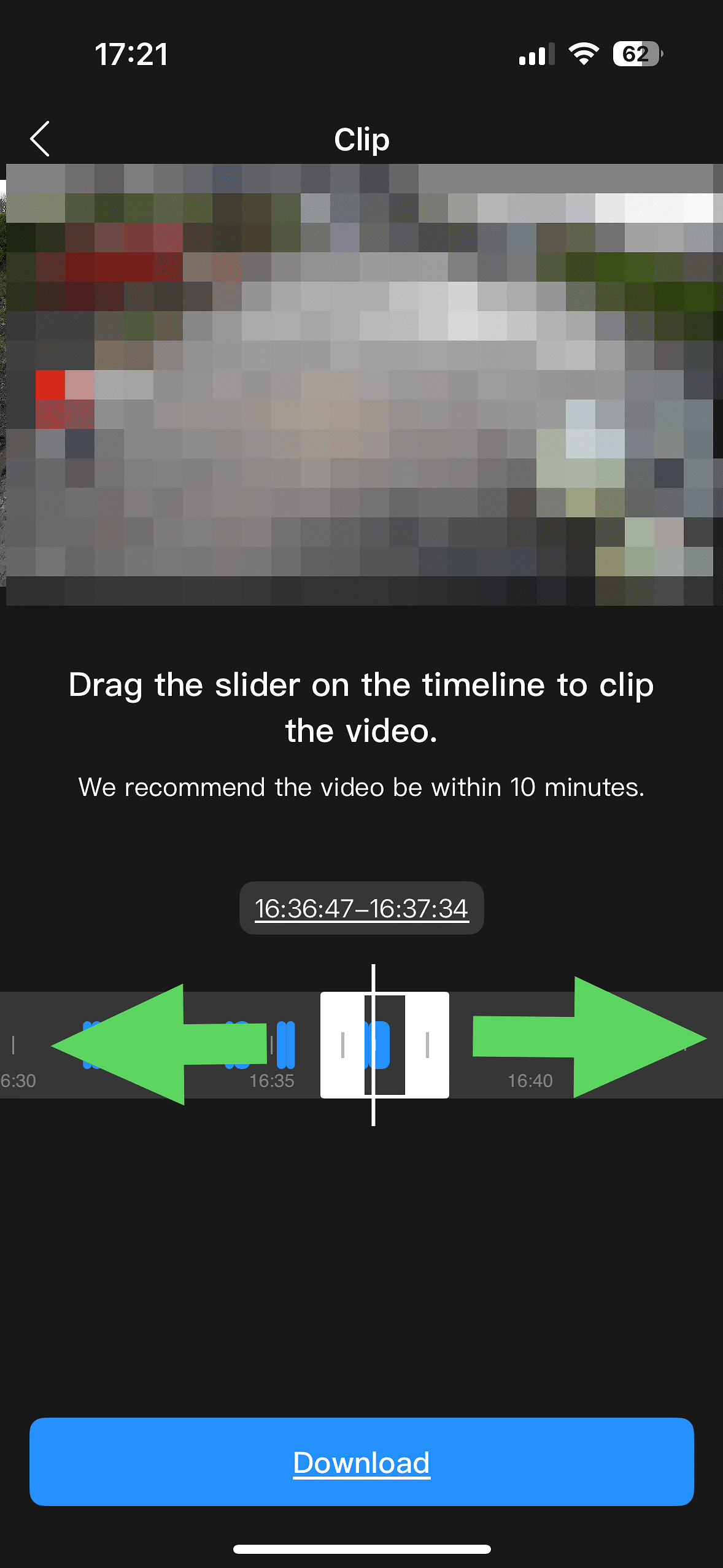
While watching the Playback, tap the Scissors (Clip) icon.
Drag the timeline to your Start Time and extend out to your End Time
Confirm the download. The clip is now saved to the App's internal folder (not your phone's gallery yet).
3. Locate the recording
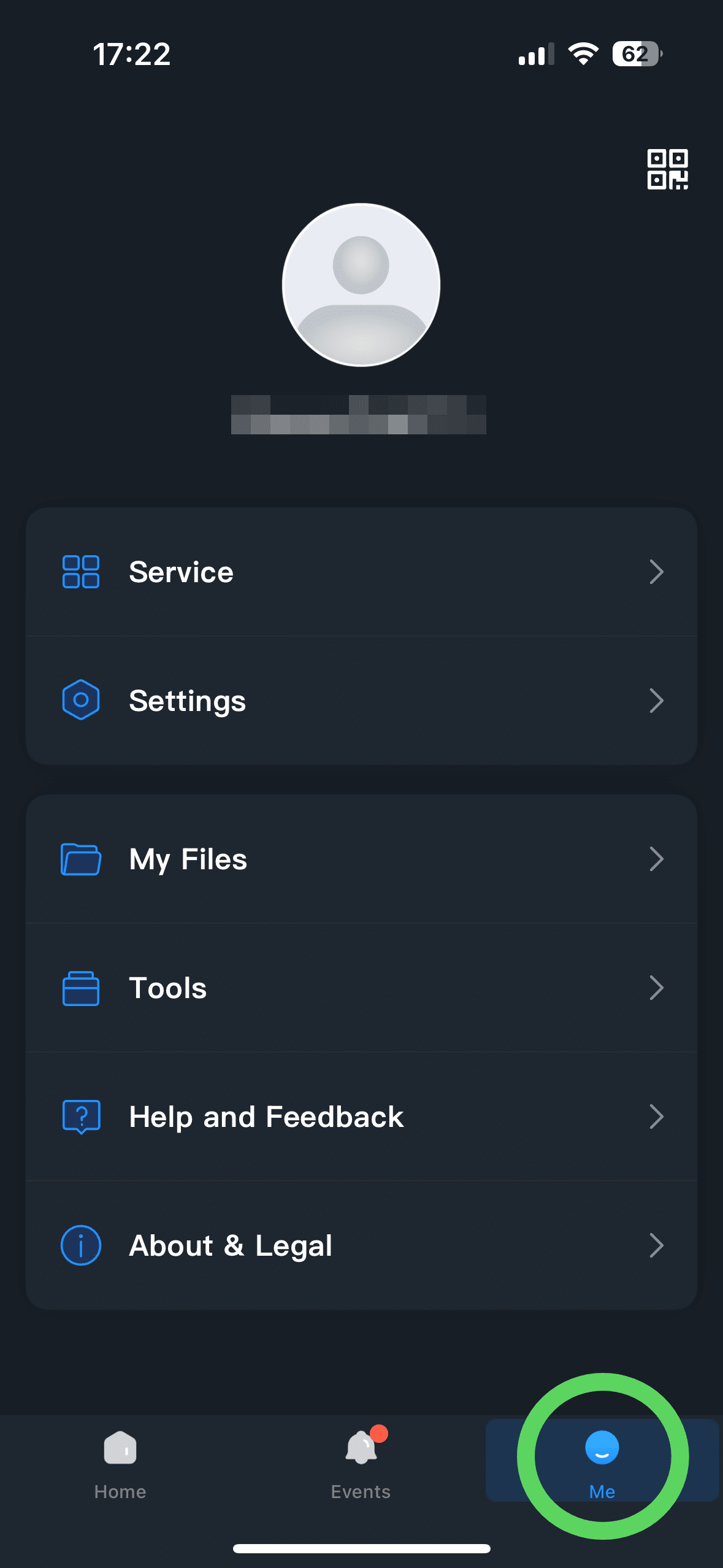
Go to the Home screen of the DMSS app.
Tap "Me" at the bottom right corner.
4. My Files
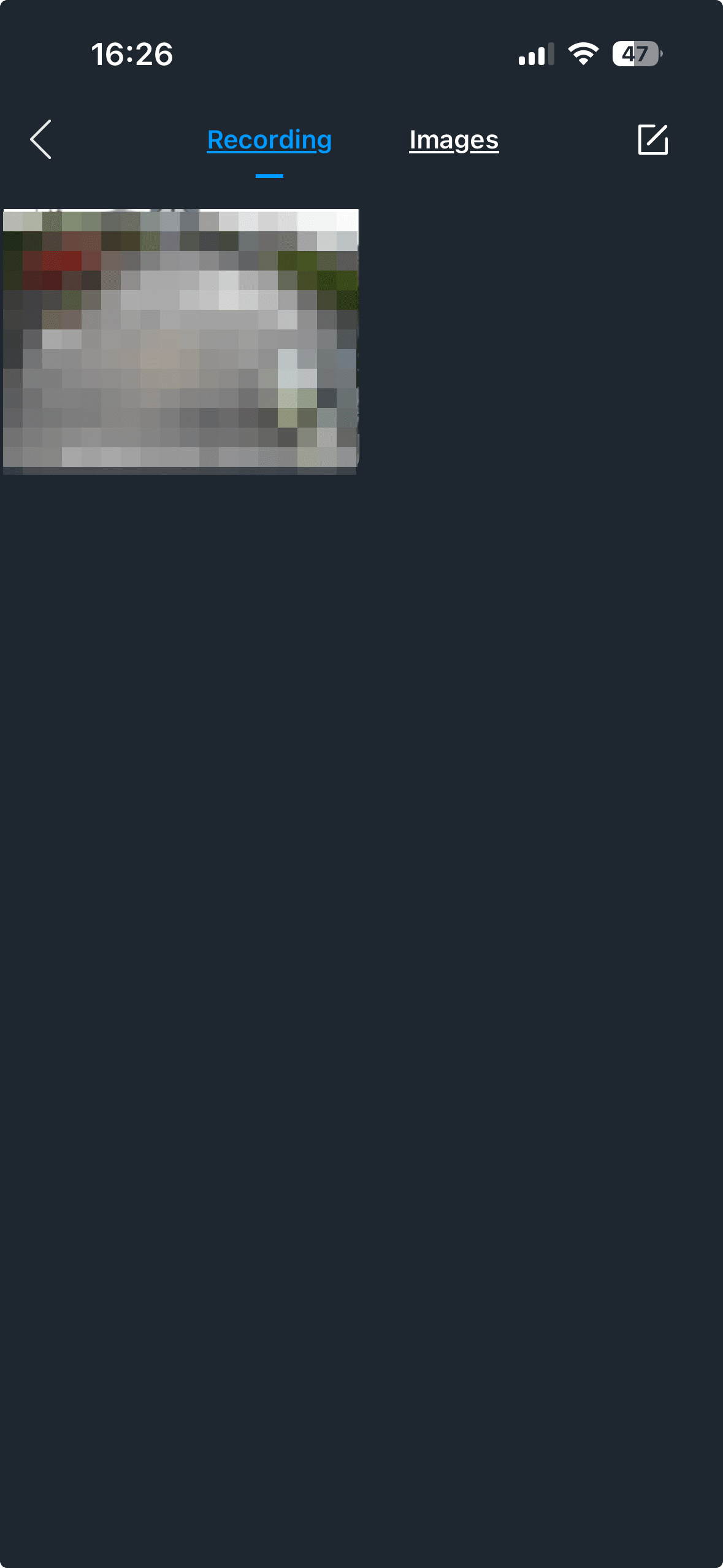
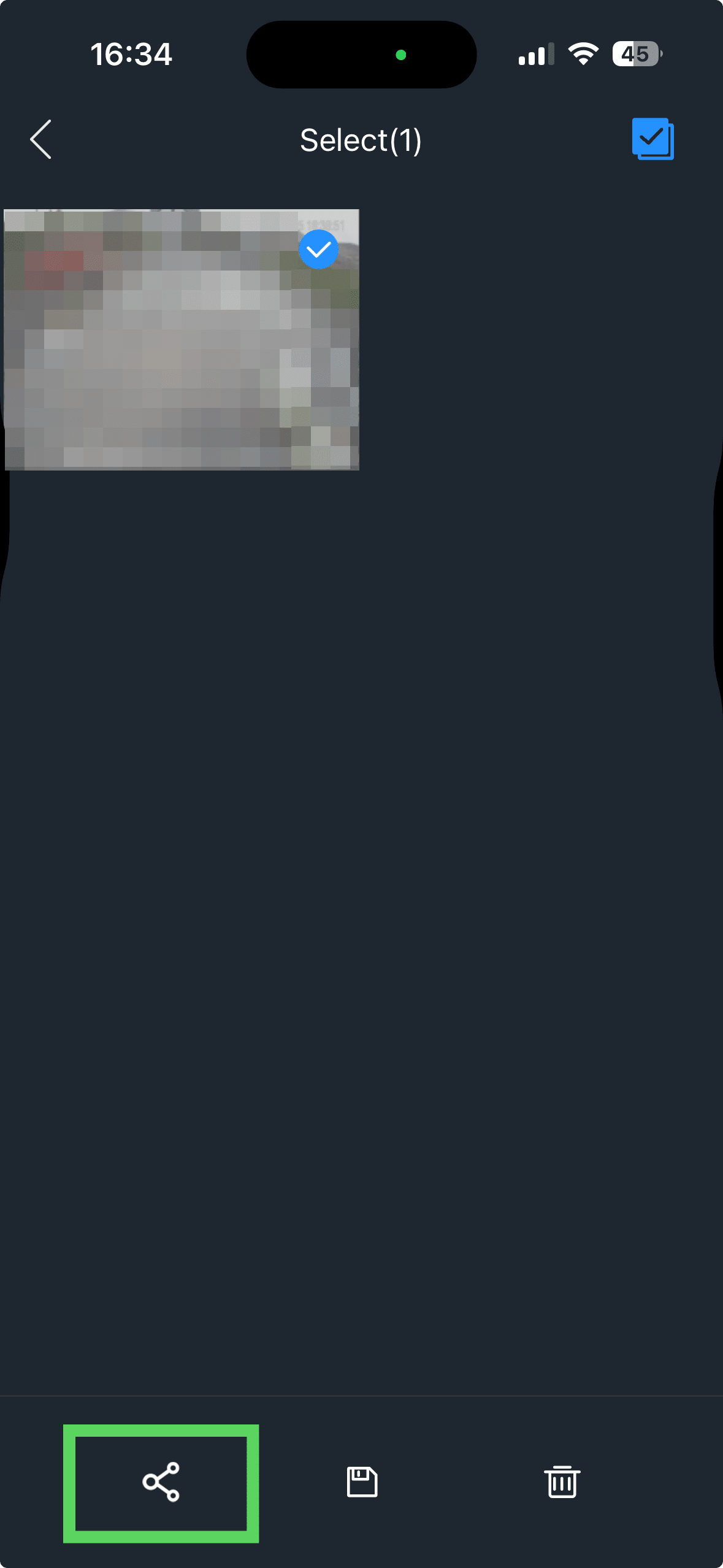
Tap on "My Files". Your video should be sitting right there.
Select the video(s) you want by long-pressing on them.
5. Save the Clip
On Android: Look for a Download icon (arrow pointing down). This will export the file directly to a folder usually named "DMSS" in your gallery.
On iPhone: Tap the Share icon. This will open the iPhone "Share Sheet." Select "Save to Files."
6. Share the Clip
On iPhone (From the Files App)
Open the Files app (the blue folder icon on your iPhone).
Navigate to the folder where you saved the clip (usually "Downloads" or "On My iPhone").
Long-press the video file or tap it to open it.
Tap the Share icon (square with an upward arrow) in the bottom corner.
Select WhatsApp, Mail, or Messages to send it.
On Android (From the Gallery/Photos App)
Open your Gallery or Google Photos.
Look for the folder named "DMSS".
Tap the video, then tap the Share icon
Select the app (WhatsApp, Email, etc.) you want to use to send the clip.