
Skip to main content
How Can We Help?
Table of Contents
This guide will take you through the steps required to view recordings in your DMSS mobile app.
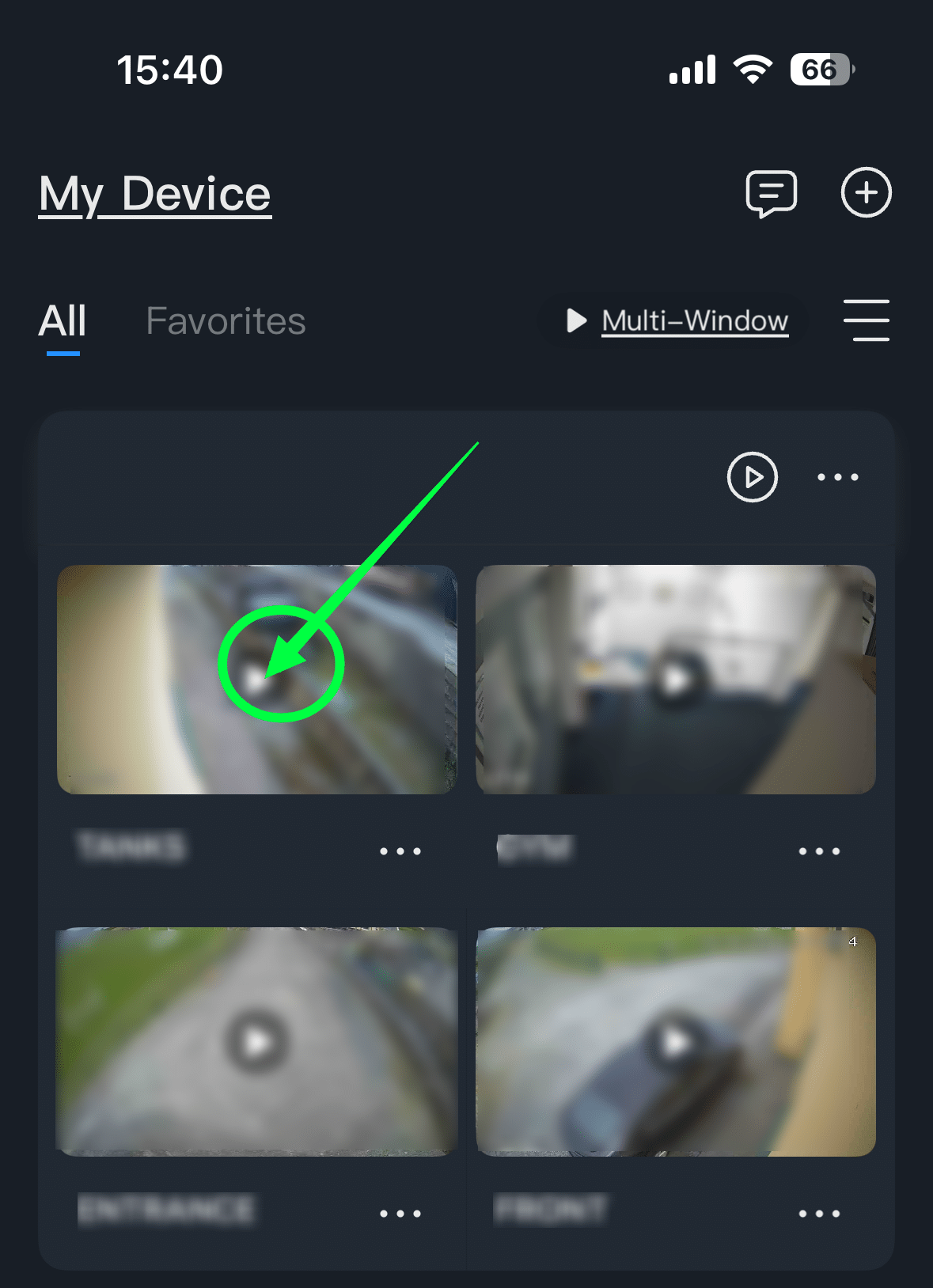
1. Select Camera
Select the camera to review its recording
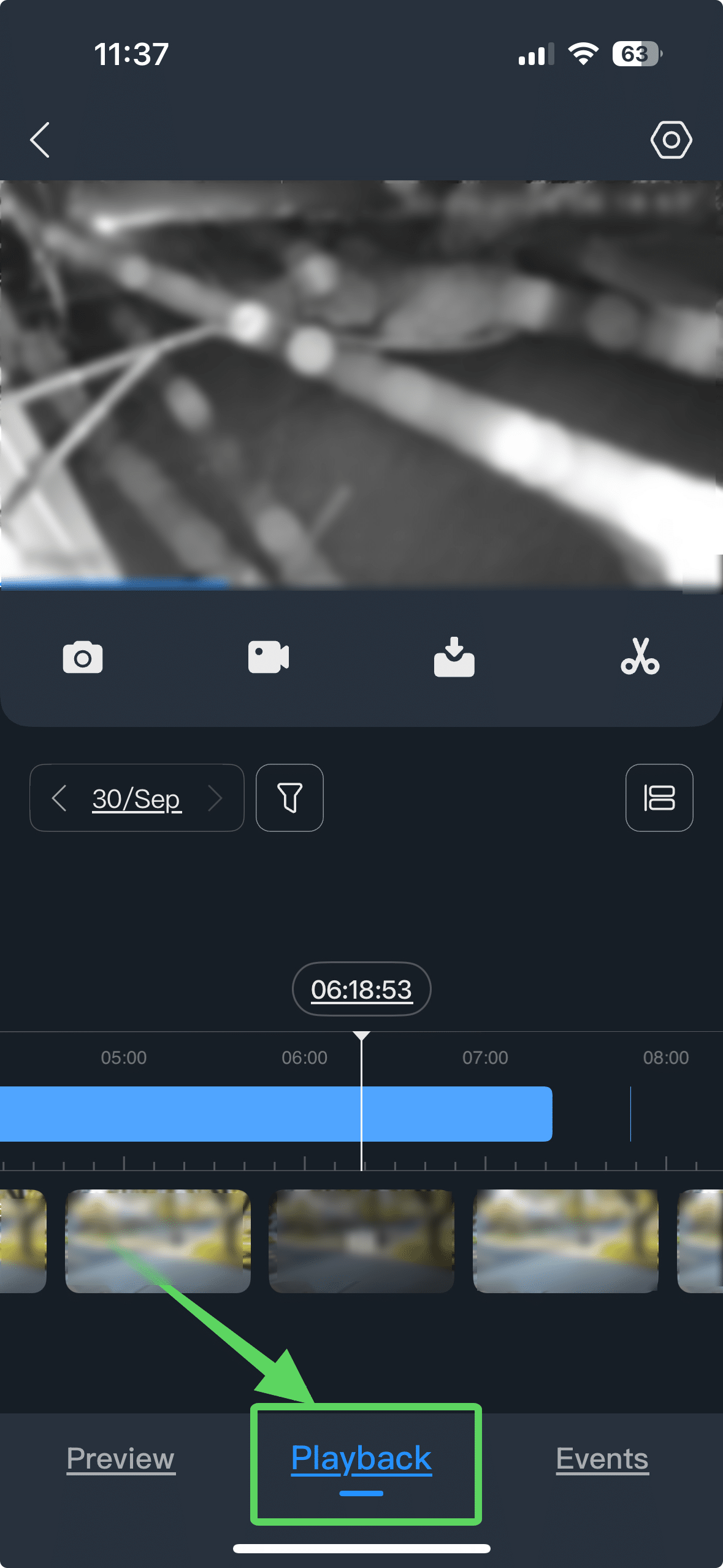
2. Select Playback
Select Playback in the bottom menu
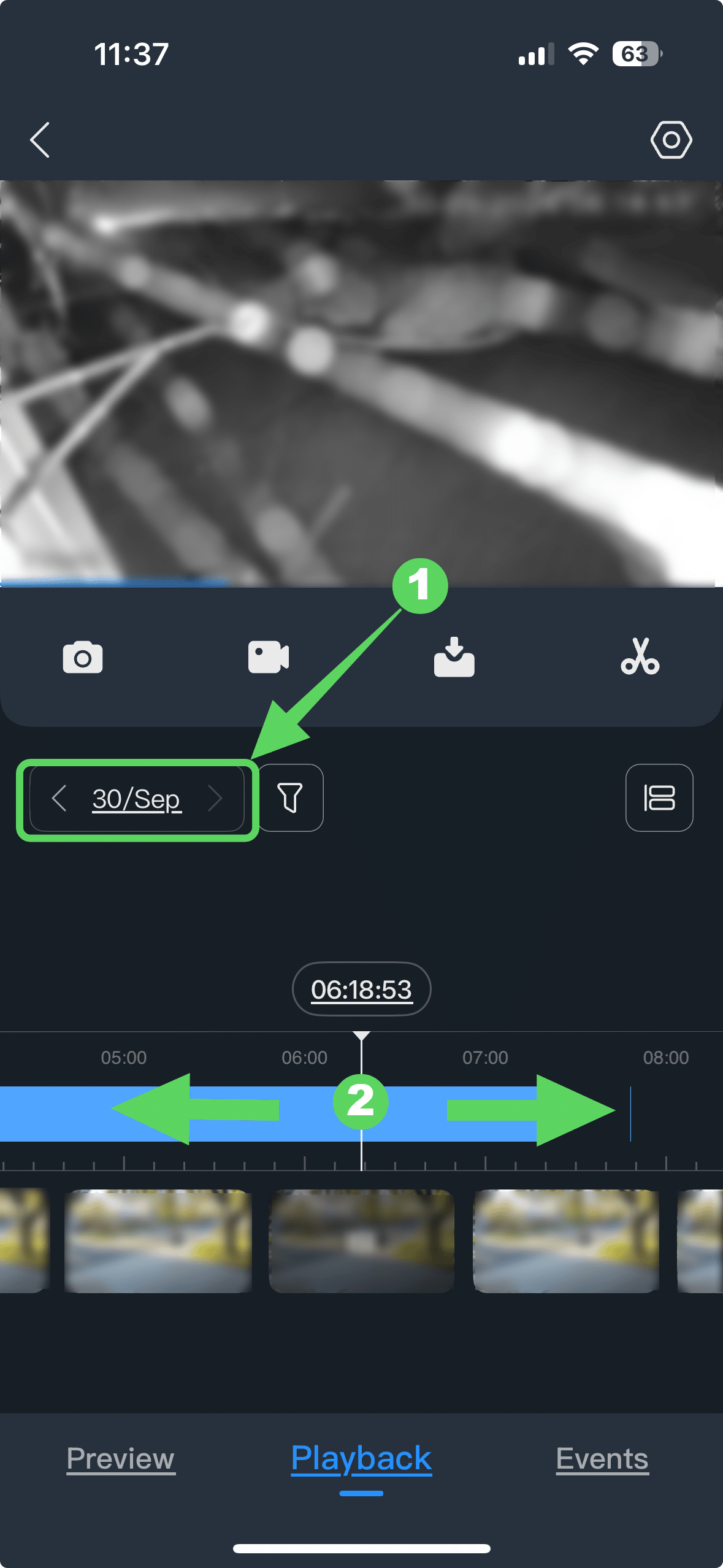
3. Apply Date Filter, move timeline
Select the recording Date as appropriate
Detected motion will be noted in the timeline in blue
You can scrub through the timeline by swiping left or right as per the arrows below.
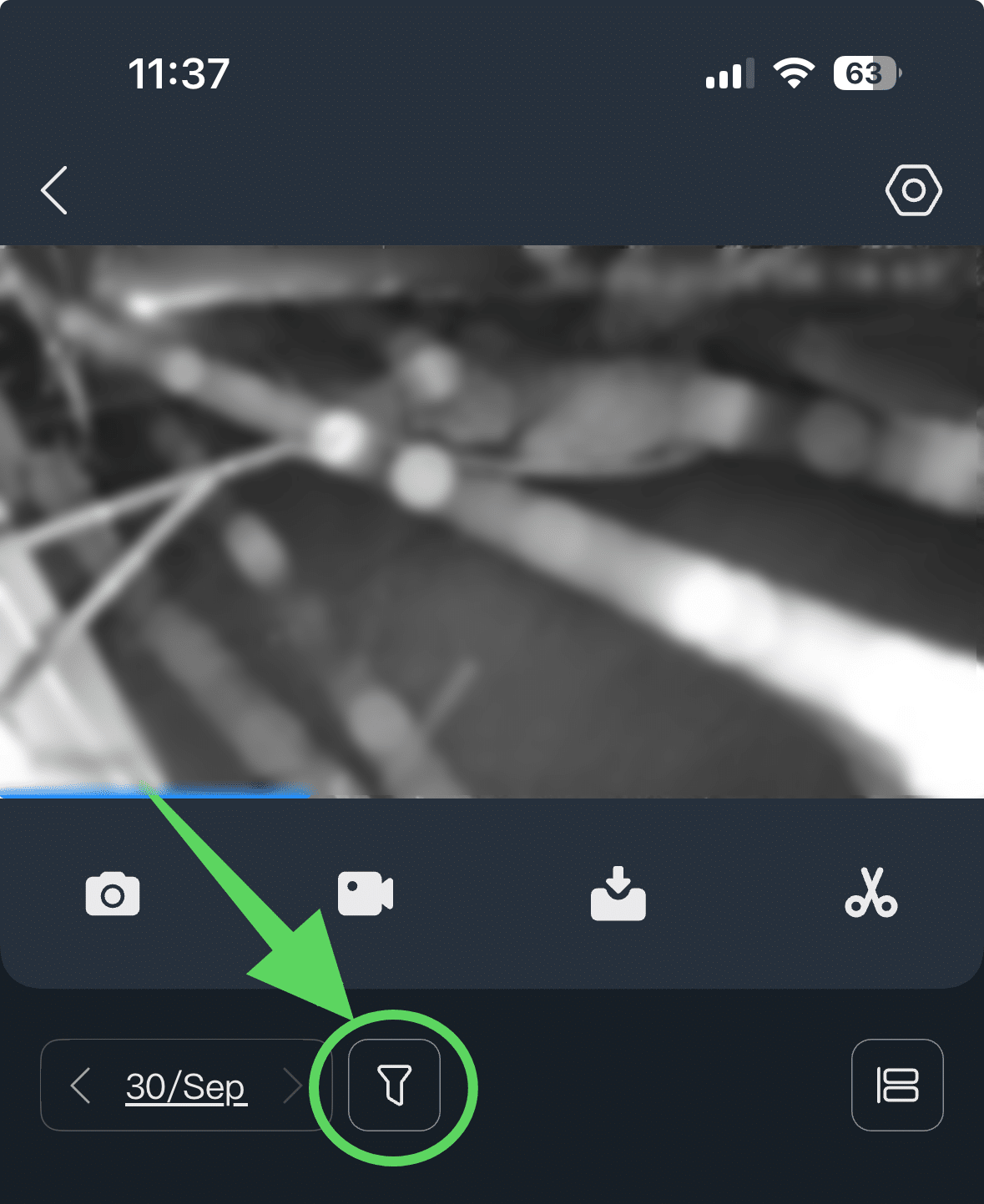
4. Filter by Detection Type
You can filter by different types of detection by selecting the filter button (circled).
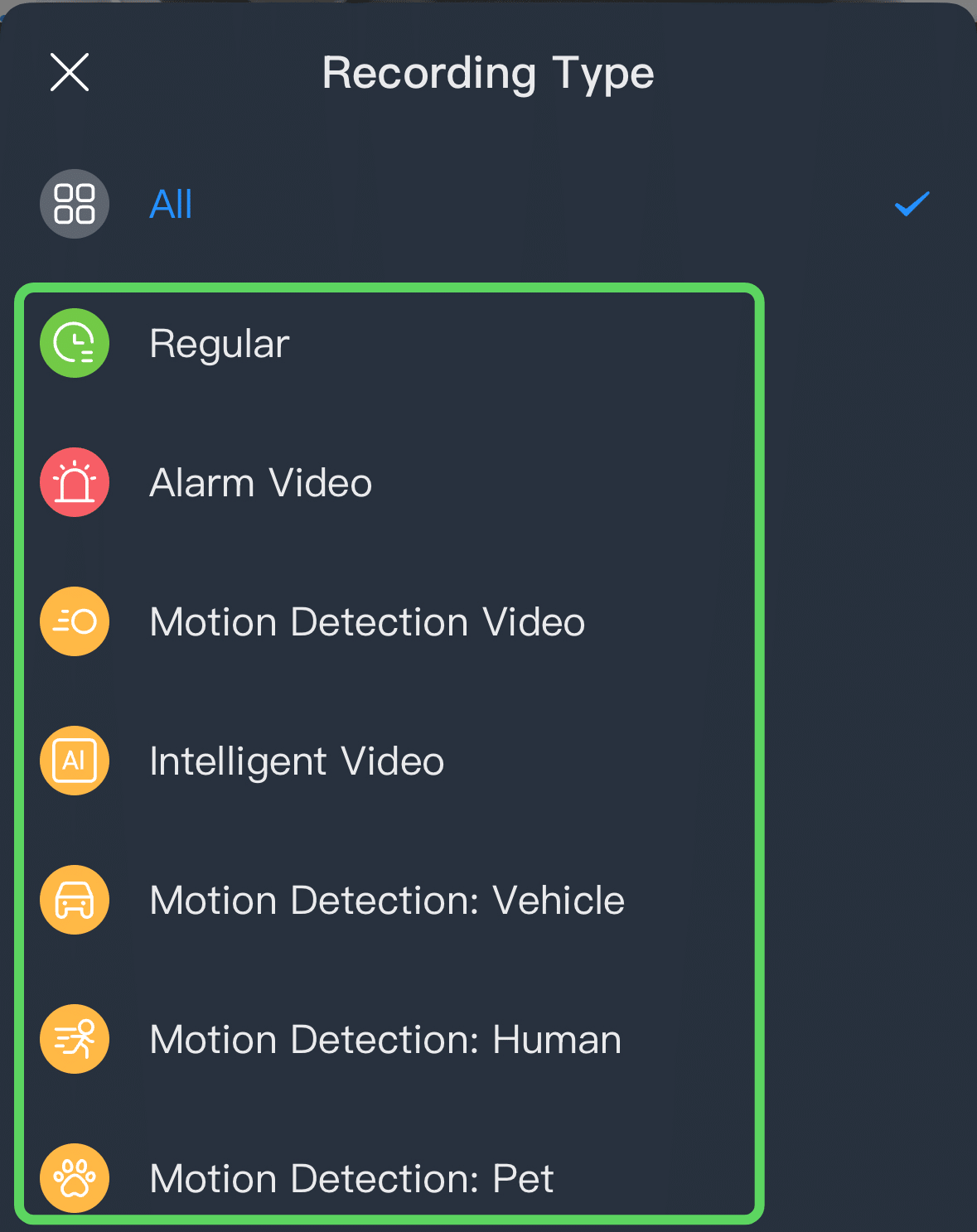
5. Select Recording Type
You can then select the type of motion detection type e.g. Human or Vehicle.